 BoxCart
Customer Accounts
BoxCart uses guest checkout by default: customers can place an order without creating an account. Sign-in, lost-password, and password-reset all run through WordPress's native authentication flow, styled to match your storefront. Accounts are optional and opt-in.
Overview
Every checkout is a guest checkout by default. The customer enters their name, email, phone, and (optionally) address: no password, no account creation step. Their order is confirmed and they receive a confirmation email containing a per-order magic link they can use to view the order any time later, even months later, without an account.
If you enable account creation, the order-confirmation page also offers an opt-in "Create an account" button. Account creation uses WordPress core's wp_create_user() and emails the customer a branded "set your password" link - they never type a password into BoxCart's UI. Returning customers sign in via a BoxCart-styled form that posts directly to wp-login.php, so every security plugin you have installed (Limit Login Attempts, Wordfence, etc.) continues to hook the authentication path natively.
Customer accounts use a custom boxcart_customer WordPress role with minimal capabilities (read only). The role is created automatically on plugin activation and verified on every page load via ensure_customer_role(). The entire account experience is frontend-only: customers are redirected away from the WordPress admin area, and the admin bar is hidden when they're viewing the site.
Account features include:
- Guest checkout (no account needed)
- Per-order magic-link order viewing for guests
- Optional post-purchase account creation
- BoxCart-styled sign-in (posts directly to
wp-login.php) - BoxCart-styled lost-password and password-reset (uses WordPress's native
retrieve_password()andreset_password()) - Dashboard with order history
- Edit personal details and change password
- Automatic linking of past guest orders to the account on first sign-in (matched by email)
- Pro: One-click reorder from past orders
- Pro: Product favourites
- Pro: Customer-side order modification window
- Pro: Two-way order messaging
The Account page is optional: BoxCart works as guest-checkout-only without it. If you want customers to be able to sign in and view past orders, create a page with the [boxcart_account] shortcode (or the BoxCart Account block) and assign it under BoxCart → Settings → General → Page Setup. The one shortcode handles sign-in, lost-password, and password-reset: no extra pages required.
Guest checkout
Guest checkout is BoxCart's default mode. The customer fills in the checkout form, places the order, and is done. The order is created with no customer_id attached: only the customer's name, email, phone, and address are stored on the order row itself. A 32-character random view token is generated with wp_generate_password() and stored alongside the order; the customer's confirmation email includes a magic-link URL containing this token (e.g. https://yoursite.com/checkout/?boxcart_order=BC-…&token=…) that lets them view the order any time without signing in.
Tokens don't expire and aren't tied to a login session: they're per-order, single-purpose, and constant-time compared on verification. If the same customer later creates an account using the same email, BoxCart's user_register and wp_login hooks automatically link all matching guest orders to the new account.
Optional account creation
If you enable account creation under BoxCart → Settings → Accounts, the order-confirmation page shows a "Create an account" button below the order details. When the customer clicks it, a modal asks for confirmation and submits to the boxcart_post_purchase_signup AJAX endpoint.
The endpoint verifies the customer's view-token (proof they own the order), checks per-IP rate limits (5 signups per hour), and then calls WordPress core's wp_create_user() with a strong random password. A BoxCart-branded "set your password" email is sent using WordPress's standard password-reset key flow: the customer follows the link and chooses their own password. BoxCart never sets a password or auth cookie at signup time.
All accounts created this way are assigned the boxcart_customer role, which grants only the read capability. On plugin uninstall, these users are reassigned to the subscriber role before the custom role is removed.
If the customer's email already matches an existing WordPress user, the signup endpoint declines politely and directs them to sign in instead. On their next sign-in, the wp_login hook auto-links the order (and any other matching guest orders).
New in 1.2: register before ordering. As well as the post-purchase signup above, you can let customers create an account up front. Enable "Let customers register before ordering" under BoxCart → Settings → Accounts and a branded registration form appears on your account page (?action=register). Registration runs entirely through WordPress core's register_new_user() flow: BoxCart derives a unique username from the email address and lets core send the standard "set your password" email, so it never captures or sets a password itself. Turning this option on also enables WordPress's users_can_register setting.
Members-only pricing (Pro)
Members-only pricing hides your prices and the "add to basket" button from logged-out visitors. They can still browse your whole catalogue, but in place of each price they see your "log in to see prices" message and a button that takes them to your account page to sign in or register. Once they log in, the normal store returns: prices, quantity options and checkout all work as usual. It's ideal for wholesale, trade, and members-only shops.
To turn it on, go to BoxCart → Settings → Accounts and enable Members-Only Pricing. You can set a custom logged-out message (shown in place of the price); leave it blank to use the default. Because it's a login-gated feature, it works best with customer accounts and up-front registration enabled and a My Account page assigned, so visitors have somewhere to sign in or register.
The gate is enforced server-side on every request: prices are never sent to a logged-out browser, and the product grid, search results, and the add-to-basket and place-order endpoints all respect it, so it holds up even behind full-page caching. Logged-out visitors are always shown the card storefront (the table view is a signed-in experience).
Login and Dashboard
When a customer is not logged in, the account page displays login and (optionally) registration forms. After logging in, customers are shown the account dashboard by default.
The account page uses the ?view= query parameter to switch between different views:
| View Parameter | Page Displayed |
|---|---|
(none) | Account dashboard (includes favourites, quick links, and recent orders) |
orders | Order history |
order (with ?order=) | Single order view |
edit | Edit details and change password |
For example, to view order history a customer would visit:
https://yoursite.com/account/?view=ordersAnd to view a specific order (by order number):
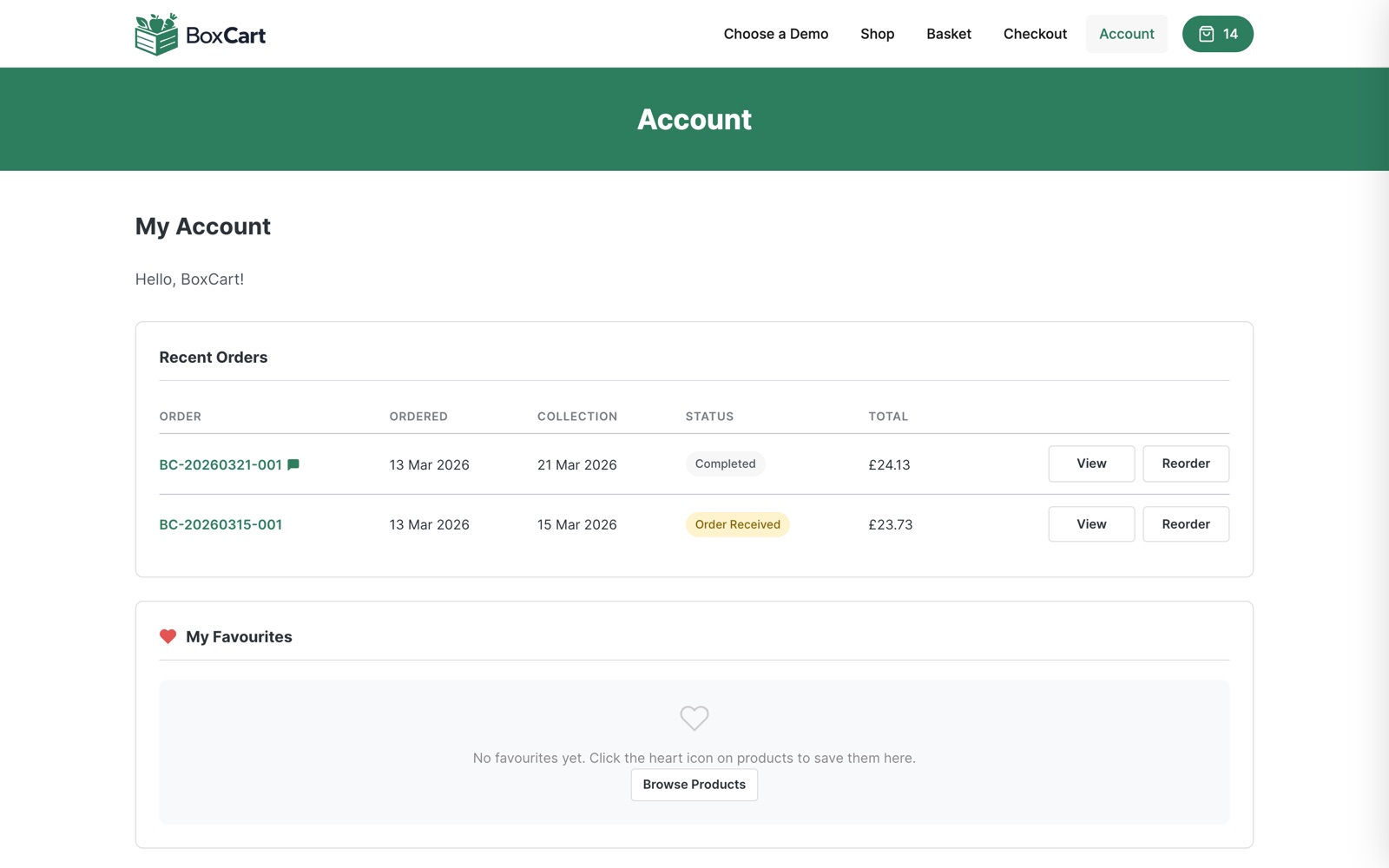
https://yoursite.com/account/?view=order&order=BC-20260420-001The dashboard provides quick links to each section, giving customers an at-a-glance overview of their account. Logged-in customers also benefit from pre-filled checkout details (name, email, phone) drawn from their account profile.
Order History
The order history view (?view=orders) displays a list of the customer's past orders, showing key details such as:
- Order number
- Date placed
- Order status
- Total amount
Clicking on an order opens the single order view (?view=order&order=), which shows full order details including items, quantities, collection slot, payment method, and order notes.
On BoxCart Pro, each order also includes a "Reorder" button. When clicked, all items from that order are added to the customer's current basket, making it easy to repeat a previous order. This button is not shown on the free build.
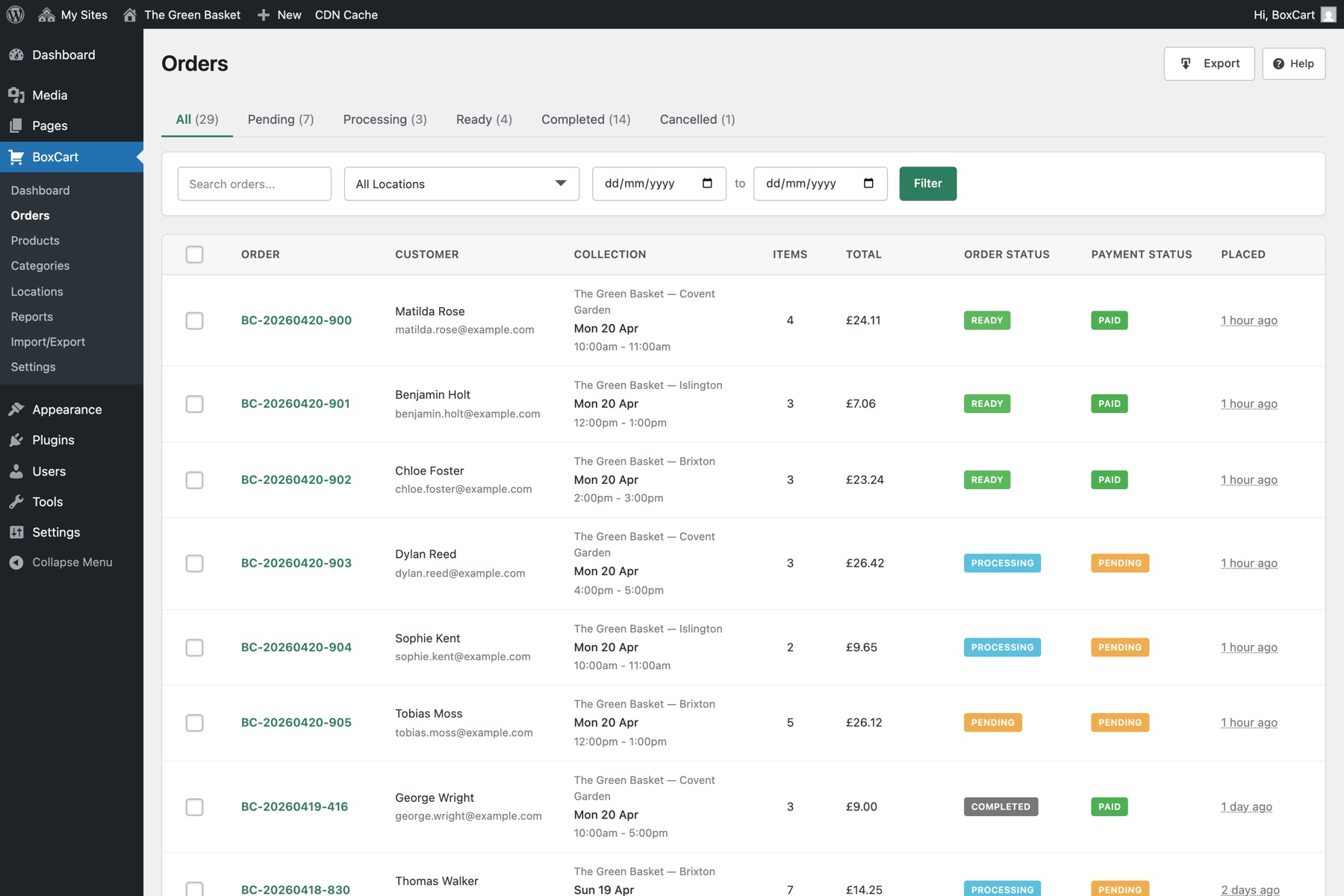
Quick reorder is a great time-saver for repeat customers on Pro. When a customer clicks Reorder, items are added to their basket and they can proceed straight to checkout.
Order Modifications
Customers can modify pending orders within a configurable time window after placing them. By default, modifications are allowed within 2 hours of the order being placed, but this window is fully configurable by the admin.
When order modifications are enabled, a "Modify Order" button appears on the single order detail view (?view=order&order=) for eligible orders. Customers can modify the following aspects of their order:
- Items: adjust quantities of existing order items (not on orders already paid by card: the customer sees a note asking them to contact you)
- Collection slot: change the selected collection slot
- Notes: update or add order notes
Each of these modification types can be individually enabled or disabled by the admin. Changes are saved via AJAX, and both the customer and the admin receive email notifications when an order is modified.
The following settings control order modifications, available under BoxCart → Settings → Accounts:
| Setting | Key | Default | Description |
|---|---|---|---|
| Allow order modifications | allow_order_modifications |
Off | Enable or disable the ability for customers to modify their orders. |
| Modification window (hours) | modification_window_hours |
2 | Number of hours after placing an order during which modifications are allowed. |
| Allow item modifications | modify_items |
On | Allow customers to adjust item quantities on their orders. |
| Allow slot modifications | modify_slot |
On | Allow customers to change the collection slot on their orders. |
| Allow note modifications | modify_notes |
On | Allow customers to update or add notes to their orders. |
| Allowed statuses | modification_allowed_statuses |
Pending, Processing | Order statuses for which modifications are permitted. |
Order modifications reduce the need for customers to cancel and re-place orders. Set the modification window to a value that gives customers enough time to make changes without impacting your preparation schedule.
Order Messaging
BoxCart includes a two-way messaging system that allows customers to communicate with the shop about their orders. When enabled, a message thread appears below the order details on the single order view (?view=order&order=).
Key features of order messaging:
- Customer messages - customers can send messages to the shop directly from their order detail view.
- Admin replies - the admin can reply to customer messages from the order view in the BoxCart admin area, creating a two-way conversation thread.
- Threaded display - all messages are displayed in chronological order below the order details, showing the sender and timestamp for each message.
Order messaging is controlled by the order_messaging_enabled setting, available under BoxCart → Settings → Accounts. When disabled, the messaging thread and input are hidden from the order view.
Edit Details
The edit details view (?view=edit) allows customers to update their personal information:
- First name and last name
- Email address
- Phone number
Changes are saved via the boxcart_update_account AJAX endpoint. All input is sanitised using sanitize_text_field() and sanitize_email().
The edit details view also includes a change password section, where the customer can enter their current password and set a new one. This is handled by the boxcart_change_password AJAX endpoint.
Lost password and reset
BoxCart's lost-password and password-reset flow uses WordPress's native authentication functions, wrapped in BoxCart-styled forms so customers never see the WordPress admin login screen.
The flow works in three steps:
-
Request a reset link
The customer clicks "Forgot your password?" on the sign-in page and enters their email address. BoxCart calls WordPress core's
retrieve_password()function, which generates a one-time password-reset key, stores it on the user record, and emails the customer a branded reset link. The form always shows the same success message, even when no matching account exists, so the page can't be used to enumerate registered emails. -
Open the reset link
The reset email contains a magic URL pointing back to your Account page with
?action=reset-password&key=…&login=…. When the customer follows it, BoxCart calls core'scheck_password_reset_key()to validate the key + user combination. If the link has expired or already been used, the page shows a clear error and a "request a new one" link. -
Set a new password
The validated reset page shows two password fields (new password + confirm). On submit, BoxCart calls core's
reset_password()function, which sets the new password, clears the reset key, and fires thepassword_resetaction so security plugins can intercept. The customer is then redirected to the sign-in page with a success notice.
Because the sign-in form posts directly to wp-login.php and the lost-password flow uses core's retrieve_password(), any security plugin you have installed (Limit Login Attempts, Wordfence, iThemes Security, etc.) continues to apply its own rate limits, brute-force protection, and IP blocking, the same way it would on a native WordPress login page. BoxCart adds no separate rate-limiting layer here.
Account Settings
Configure customer account behaviour under BoxCart → Settings → Accounts. The following settings are available:
| Setting | Key | Default | Description |
|---|---|---|---|
| Require phone number at checkout | require_phone |
Off | Make the phone number field required during checkout. |
| Redirect customers away from wp-admin | redirect_customers_from_admin |
On | Automatically redirect customers to their frontend account page if they try to access the WordPress admin area. |
| Hide admin bar for customers | hide_admin_bar_for_customers |
On | Hide the WordPress admin bar when customers are viewing the site. |
Favourites
Logged-in customers can save products to their favourites by clicking the heart icon on any product card. Favourites are stored in user meta as a serialised array of product IDs. On a single-site install the meta key is boxcart_favourites; on a WordPress multisite network it is automatically scoped per subsite as boxcart_favourites_{blog_id} so that favourites on one store don't leak into another.
Key features of the favourites system:
- Toggle on/off: Clicking the heart icon adds or removes a product from favourites via the
boxcart_toggle_favouriteAJAX endpoint. Lookups are restricted to publishedboxcart_productposts and deduplicated on read. - Filter by favourites: Customers can filter the products page to show only their favourited products. The filter runs server-side via the
favourites_onlyquery parameter onboxcart_search_products/boxcart_load_table_products, so "Load more" paginates correctly within the filtered set. - Mutually exclusive with category & search: Activating a category pill, typing in the search box, or picking a category from the dropdown deactivates the favourites filter automatically. This avoids the empty-grid behaviour of intersecting filters.
- Retrieve favourites: The
boxcart_get_favouritesAJAX endpoint returns the customer's full list of favourite product data (IDs, names, images, stock status).
Favourites are only available to logged-in customers.
Encourage customers to create accounts by highlighting the favourites feature. Combined with quick reorder, it creates a fast, personalised shopping experience for repeat customers.