 BoxCart
Import / Export Pro
Import and export your products and categories via CSV files with built-in validation, error reporting, and support for WooCommerce and Shopify formats.
CSV import and export of products and categories is a BoxCart Pro feature and is not available on the free build. Exporting your orders to CSV is a separate, free feature available from BoxCart → Orders.
Overview
BoxCart includes a full CSV import and export system that lets you bulk-manage your product catalogue. You can export your existing products to a CSV file, edit them in a spreadsheet application, and re-import them to apply changes. The importer validates every row, reports errors by line number, and provides a summary of created, updated, skipped, and failed rows.
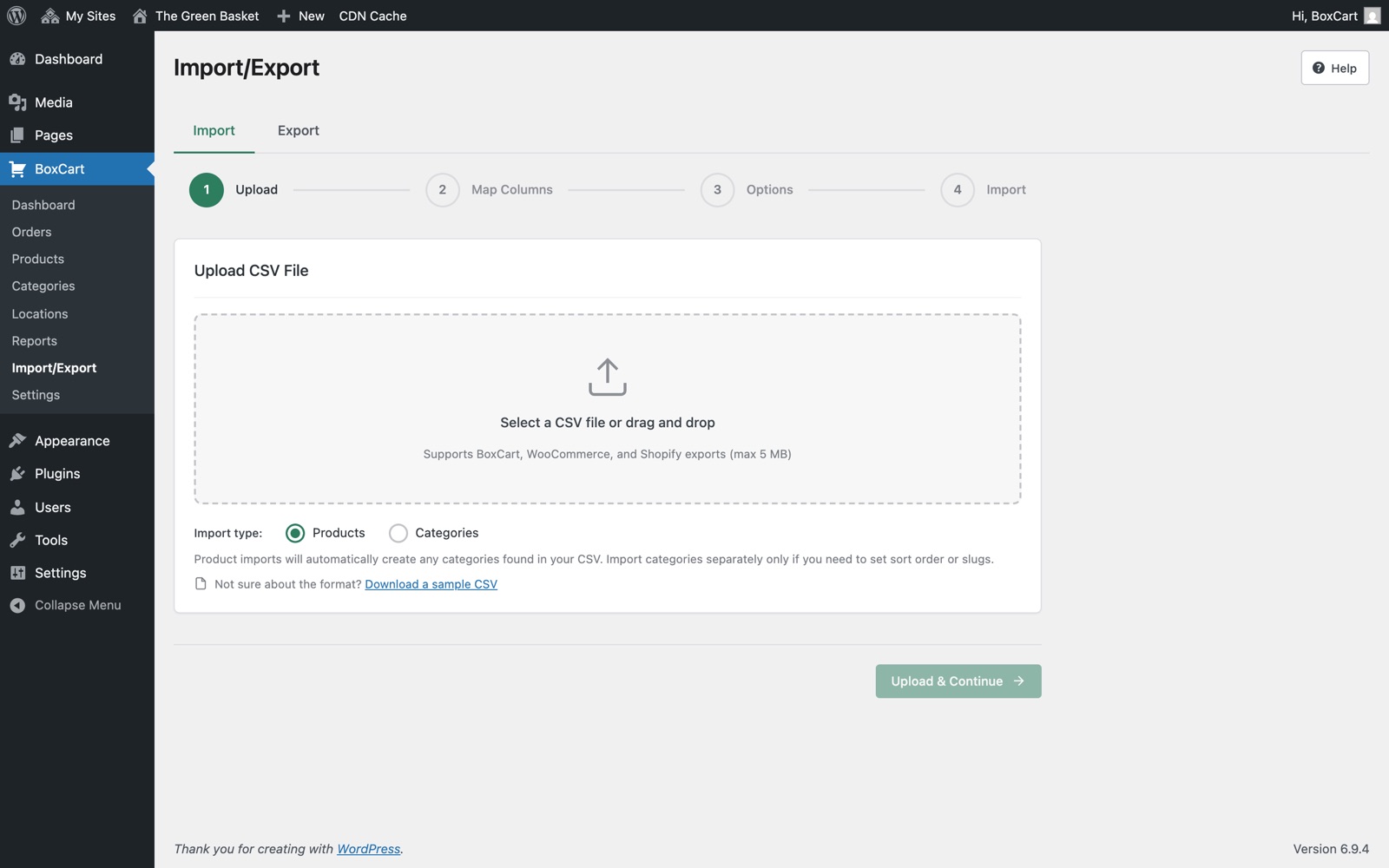
The import/export page is found at BoxCart → Import / Export in your WordPress admin. It supports two data types:
- Products: Full product data including name, SKU, price, categories, stock status, images, and quantity types
- Categories: Category names, slugs, parent relationships, and sort order
Exporting Products
To export your products, navigate to BoxCart → Import / Export and click the Export Products button. BoxCart will generate a CSV file named boxcart-products-YYYY-MM-DD.csv and download it to your computer.
The exported CSV includes the following columns:
| Column | Description |
|---|---|
| ID | The internal product ID (used for matching on re-import) |
| SKU | Stock keeping unit code |
| Name | Product name / title |
| Description | Product description |
| Categories | Comma-separated categories, using > for hierarchies (e.g. Vegetables > Tomatoes) |
| Image URL | URL of the featured image |
| Stock Status | in_stock, out_of_stock, or disabled |
| Sort Order | Numeric display order |
| Published | 1 for published, 0 for draft |
| Price | Product base price (included when prices are enabled) |
| Qty Type columns | Up to 5 quantity types with label, price, step, min, max, and decimal settings |
| Quantity Types JSON | Complete quantity type data as JSON for lossless round-tripping |
You can also export categories separately by clicking Export Categories. The categories CSV includes ID, Name, Slug, Parent, and Sort Order columns.
Export your products first to get a ready-made template with all the correct columns. You can then modify the data in a spreadsheet and re-import it.
CSV Format
When preparing a CSV file for import, use the following column specifications. The first row must contain the column headers.
| Column Name | Type | Required | Description |
|---|---|---|---|
Name | String | Required | The product name. Must not be empty. |
SKU | String | Optional | Stock keeping unit. Used to match existing products on import. Duplicate SKUs will update the existing product when update mode is enabled. |
Price | Number | Optional | Base price as a decimal number (e.g. 3.50). Included when prices are enabled in settings. |
Categories | String | Optional | Comma-separated category names. Use > for parent-child hierarchies (e.g. Vegetables > Tomatoes). Missing categories are created automatically. |
Stock Status | String | Optional | One of in_stock, out_of_stock, or disabled. Defaults to in_stock if omitted. |
Stock Quantity | Number | Optional | Numeric stock quantity (when quantity-based stock tracking is used). |
Description | String | Optional | Product description text. |
Image URL | URL | Optional | Full URL to the product's featured image. The image will be downloaded and imported into the WordPress media library. |
Sort Order | Integer | Optional | Numeric display order. Lower numbers appear first. |
BoxCart also recognises columns from WooCommerce and Shopify CSV exports, including Regular price, Sale price, Handle, Title, Body (HTML), and Variant SKU. The importer auto-detects the format and maps columns accordingly.
You can download a sample CSV template from the import page by clicking Download Sample CSV. This includes example rows that demonstrate categories, quantity types, and all supported columns.
Importing Products
Follow these steps to import products from a CSV file.
-
Prepare your CSV file
Create or edit your CSV file in a spreadsheet application (Excel, Google Sheets, Numbers). Ensure the first row contains column headers matching the names listed in the CSV Format section above. Save the file in CSV (UTF-8) format.
-
Navigate to Import / Export
In your WordPress admin, go to BoxCart → Import / Export. Select the Import tab if it is not already active.
-
Upload your file
Select Products or Categories as the import type. Choose your update mode: Skip existing (leaves matching products unchanged) or Update existing (overwrites matching products with the CSV data). Click Choose File, select your CSV, and click Import.
-
Review validation results
BoxCart validates every row before processing. If there are errors (such as missing required fields or invalid data types), they will be listed with the specific row number and error message. Review these carefully.
-
Confirm import results
After the import completes, a summary shows the number of products created, updated, skipped, and any errors. Check your product list at BoxCart → Products to verify the imported data.
Validation Rules
The importer validates each row of your CSV before creating or updating products. The following checks are performed:
| Check | Details |
|---|---|
| Required fields | The Name column is required for every row. Rows with an empty name are rejected and counted as errors. |
| Data types | Price values must be valid numbers. Sort order must be a non-negative integer. Stock status must be one of the recognised values. |
| Duplicate SKUs | If a product with the same SKU already exists, the behaviour depends on your update mode. In skip mode, the row is skipped. In update mode, the existing product is overwritten with the CSV data. |
| Product ID matching | If an ID column is present (from a previous BoxCart export), the importer first tries to match by ID. If no ID match is found, it falls back to SKU matching. |
| Category matching | Categories referenced in the CSV are matched by name. If a category does not exist, it is created automatically, including any parent categories in a hierarchy (e.g. Vegetables > Tomatoes creates both). |
| Image URLs | Image URLs are validated. If an image cannot be downloaded, a warning is added but the product is still imported without the image. |
| File validation | The uploaded file must be a valid CSV with a .csv extension, a recognised MIME type, and must not exceed 5 MB in size. |
Error Handling
BoxCart processes every row in your CSV and provides detailed feedback on the outcome.
- Per-row errors: Each error includes the row number and a descriptive message (e.g. "Row 5: Product name is required"). This makes it straightforward to locate and fix problems in your spreadsheet.
- Partial imports: The importer processes all rows regardless of individual failures. Valid rows are imported successfully while invalid rows are skipped with error messages. You do not need to re-import the entire file for the rows that succeeded.
- Warnings: Non-critical issues (such as an image that could not be downloaded) are reported as warnings. The product is still created or updated, but without the image.
- Result summary: After import, a summary displays four counts: created (new products), updated (existing products overwritten), skipped (existing products left unchanged in skip mode), and errors (rows that failed validation).
To fix and retry failed rows, export the error details, correct the issues in your CSV, and re-import. Set the update mode to Skip existing so that successfully imported products are not modified again.
Tips
If you already have products in BoxCart, export them first. The exported CSV serves as a perfect template with all the correct column headers and example data. You can add new rows to this file and re-import it.
Always back up your WordPress database before running a large import, especially when using Update existing mode. Updates overwrite existing product data and cannot be undone.
Before importing hundreds of products, test with a small CSV containing 3–5 rows. Verify that names, prices, categories, and images all import correctly. Once you are confident in the format, import the full file.
When saving your CSV from Excel or Google Sheets, choose CSV UTF-8 format. BoxCart handles the UTF-8 BOM (byte order mark) automatically, ensuring special characters in product names and descriptions are preserved.
BoxCart automatically detects WooCommerce and Shopify CSV formats and maps their columns to BoxCart fields. You can export from your existing platform and import directly into BoxCart without reformatting the file. WooCommerce variable products with variations are collapsed into BoxCart quantity types.