 BoxCart
Orders
Every order placed through your BoxCart store follows a clear lifecycle from creation to completion. This guide covers how orders work, how to manage them, and the tools available for printing, reordering, and modification.
Order Lifecycle
BoxCart uses a linear status flow that tracks each order from the moment it is placed through to completion. The primary path is:
Pending → Processing → Ready → Completed
At any point before completion, an order can also be moved to Cancelled as a side branch.
| Status | Description |
|---|---|
| Pending | The order has been placed and is awaiting action from the store. This is the default status for new orders. Always available and cannot be disabled. |
| Processing | The store has acknowledged the order and is preparing the items for collection. You set this status yourself: a payment being confirmed (by Stripe or by you) records the order as paid but doesn't move it here. |
| Ready | All items have been picked and packed. The order is ready for the customer to collect. A "Ready for Collection" email is sent to the customer. |
| Completed | The customer has collected their order. The order is finalised and archived. |
| Cancelled | The order has been cancelled by the store or the customer. Always available and cannot be disabled. |
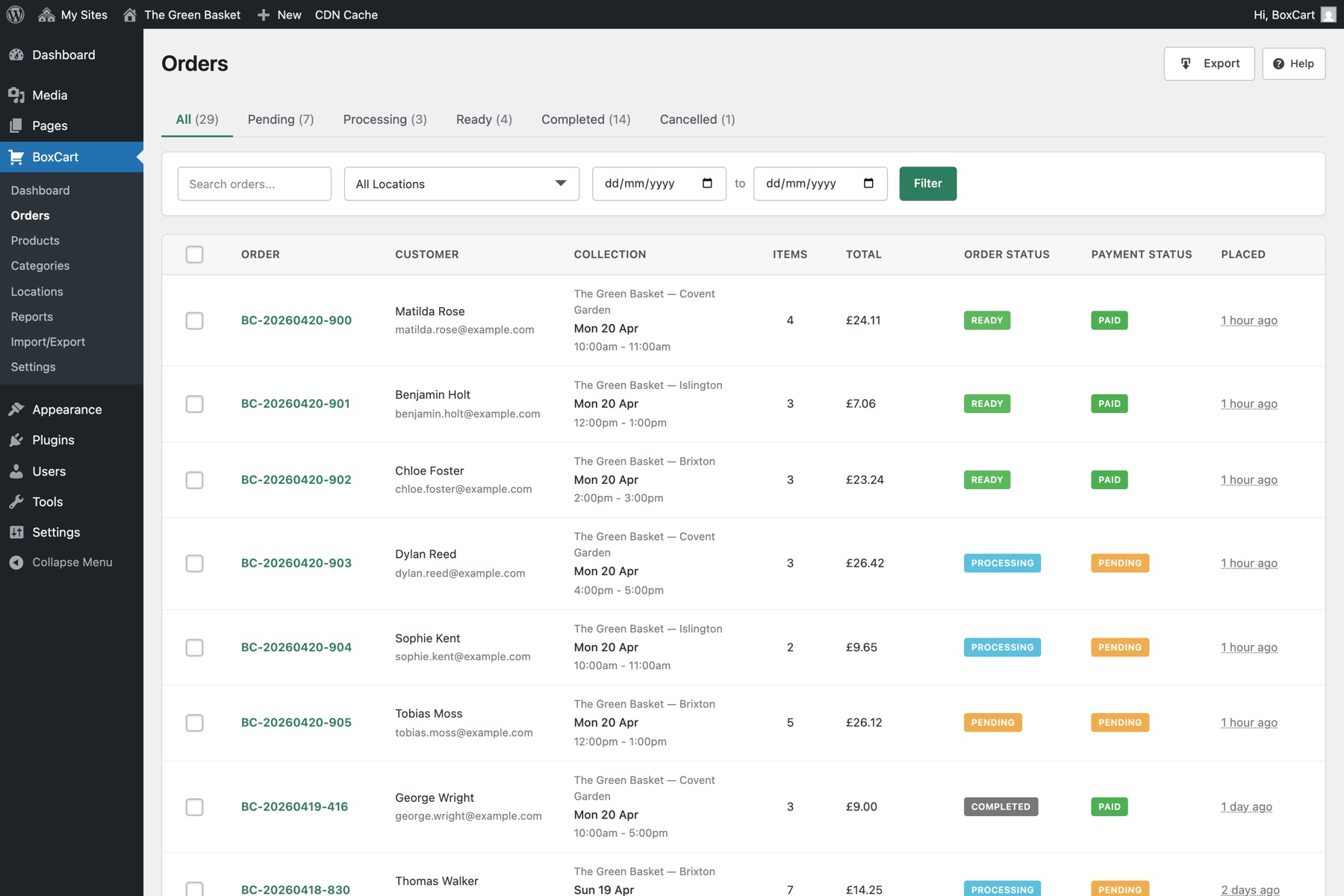
You can choose which statuses are enabled in BoxCart → Settings → Orders. The Processing, Ready, and Completed statuses can each be toggled on or off. Pending and Cancelled are always available. The default status for new orders is configurable and defaults to "Pending".
Payment Statuses
BoxCart tracks payment status separately from order status. This allows you to see at a glance whether an order has been paid, regardless of where it is in the fulfilment process. The "Payment Status" column appears in the orders list when payments are enabled.
| Payment Status | Description |
|---|---|
| Not Required | No payment is needed for this order. This is the default when the payment system is disabled. |
| Pending | Payment is expected but has not yet been initiated. Used for cash on collection orders. |
| Awaiting Payment | The customer has been given payment instructions (e.g. bank transfer details) and the store is waiting for funds to arrive. |
| Processing | Payment is being processed by the payment gateway (e.g. Stripe is handling the transaction). |
| Paid | Payment has been successfully received and confirmed. |
| Failed | The payment attempt was unsuccessful. The order still exists and the customer may retry. |
| Refunded | The payment was returned to the customer after a previously successful charge. |
| Cancelled | The payment was cancelled before completion. |
For bank transfer orders, a "Confirm Payment Received" button appears on the order detail view. Clicking it sets the payment status to "Paid" and sends the customer a "Payment Received" email. The order status doesn't change: move it on when you start preparing the order.
Managing Orders
The orders list is your central hub for day-to-day order management. Navigate to Admin → BoxCart → Orders to access it.
Filtering and searching
The orders list provides several ways to find the orders you need:
- Filter by status: Click any status tab to show only orders with that status (e.g. Pending, Processing, Ready)
- Filter by location: Select a specific collection location from the dropdown to show orders for that site only
- Filter by date range: Choose a date range to narrow results to a specific period
- Search: Search by order number or customer name to quickly locate a specific order
Results are paginated at 20 orders per page with sortable columns.
Changing order status
From the order detail view, use the status dropdown to advance an order through the lifecycle. Each status change is:
- Logged in the order's status history with a timestamp, the previous status, the new status, and the user who made the change
- Triggers a status-change email to the customer (e.g. "Order Ready for Collection")
Every status change is recorded in the boxcart_order_status_log table. This provides a complete audit trail showing who changed the status, when it was changed, and what the previous status was.
Order Detail View
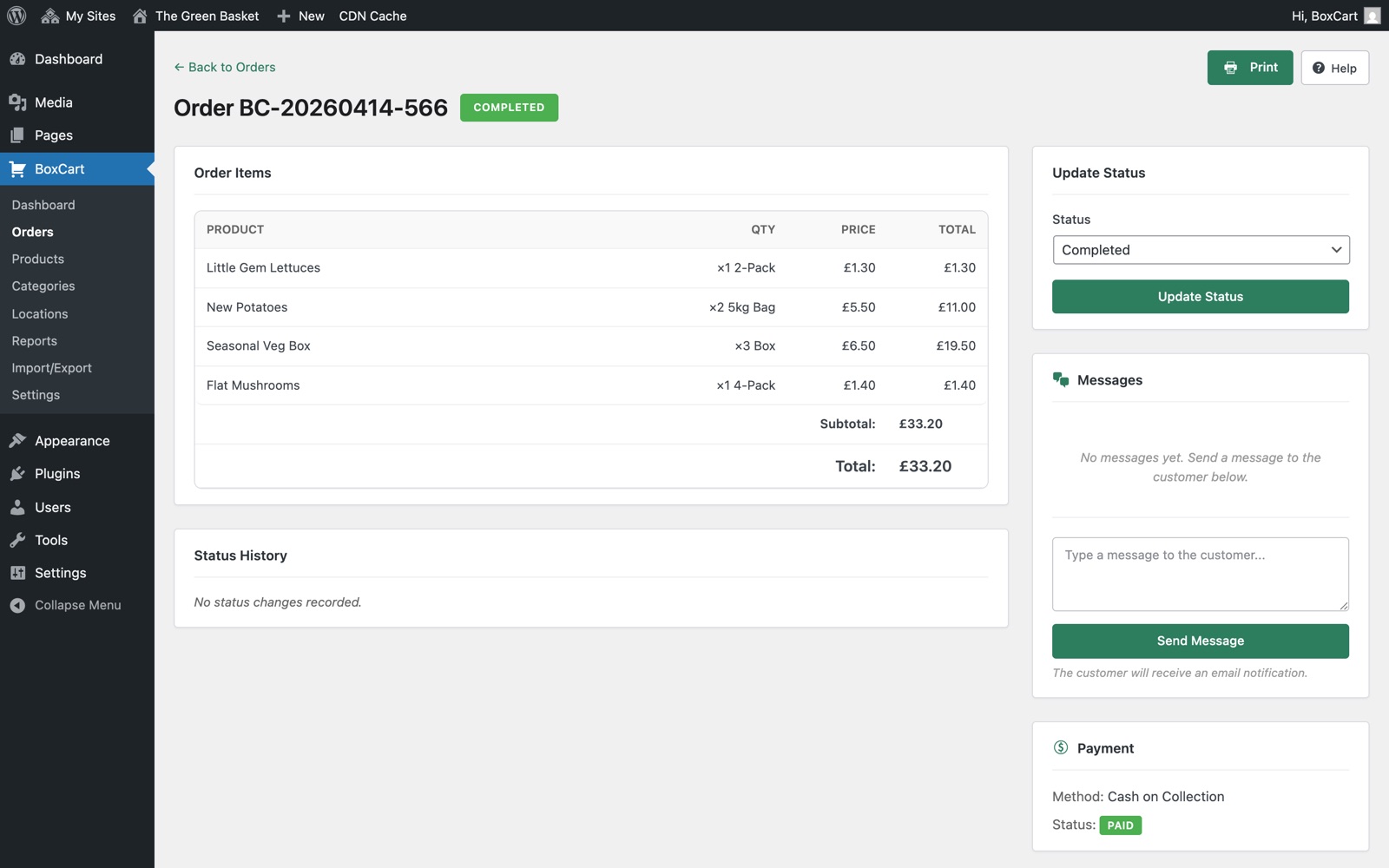
Click any order in the list to open the full order detail view. This page displays everything you need to fulfil the order.
Customer information
- First name, last name, and email address
- Phone number (if provided)
- Link to the customer's registered account
Order items
An itemised list showing each product ordered, including:
- Product name and SKU
- Quantity and unit label (for quantity-type products)
- Price per unit and line total
- Subtotal, tax (if enabled), and order total
Collection details
- Collection location name and address
- Selected collection date and time slot
Payment information
A sidebar card displays the payment details when payments are enabled:
- Payment method (Stripe, Cash on Collection, or Bank Transfer)
- Payment status badge
- Transaction ID (for Stripe payments)
- "Confirm Payment Received" button for bank transfer orders
Status log
A chronological list of all status changes for this order, showing the old status, new status, timestamp, and the admin user who made the change.
Admin notes
A free-text field for internal notes about the order. The label for this field can be customised in BoxCart → Settings → Orders (defaults to "Admin Notes"). Customer-submitted order notes are displayed separately.
Pick Lists Pro
BoxCart Pro can generate printable pick lists and packing slips to help you prepare orders for collection. This is a Pro-only feature. See the Free vs Pro comparison.
Print formats
Three formats are available:
| Format | Includes Prices | Includes Headers | Best For |
|---|---|---|---|
| Pick List | Yes | Yes | Internal use when prices are needed for verification |
| Packing Slip | No | Yes | Including with the customer's order as a receipt without prices |
| Minimal | No | No | Quick reference sheets for picking items from shelves |
You can print pick lists for a single order or for multiple orders at once. The print view is a standalone HTML page with dedicated print styles, designed to produce clean output on paper.
Enable "Include Order Notes on Print" in Settings → Orders to show customer notes on your pick lists. This is useful for special requests like "please leave the apples unbagged" or allergen notes.
Order Numbering
BoxCart assigns a sequential number to each order. You can customise the numbering scheme in BoxCart → Settings → Orders.
| Setting | Default | Description |
|---|---|---|
| Order Number Prefix | BC | A prefix added to the beginning of every order number. Out of the box this is set to BC, so orders are numbered BC-0001, BC-0002, and so on. Clear it or change it to use your own prefix. |
| Order Number Start | 1 | The starting number for order numbering. Accepts a value between 1 and 999999. Only applies to new orders created after the setting is changed. |
Changing the starting number only affects orders placed after the change. Existing orders retain their original numbers. If the new starting number is lower than an existing order number, BoxCart will continue from the highest existing number to avoid duplicates.
Quick Reorder Pro
On BoxCart Pro, customers can reorder any previous order from their Order History with one click. Especially useful for regular customers who order the same items each week.
-
View a past order
The customer navigates to their account and opens their order history, or views a specific past order.
-
Click "Reorder"
A Reorder button appears on past orders. Clicking it adds all items from that order to the current basket.
-
Review and checkout
The customer is redirected to the basket or checkout page where they can review the items, make adjustments, and place the new order.
Order Modification
BoxCart allows customers to modify their orders within a configurable time window after placing them. This feature is disabled by default and can be enabled in BoxCart → Settings → Accounts → Order Modifications.
Configuration
| Setting | Default | Description |
|---|---|---|
| Allow order modifications | Off | Master toggle to enable or disable the feature. |
| Modification window | 2 hours | The number of hours after placing an order during which modifications are allowed. Configurable from 1 to 48 hours. |
| Items and quantities | On | Allow customers to change which products are in the order and adjust quantities. New items are priced at your current prices and tax is recalculated. Orders already paid by card can't have their items changed online: the customer sees a note asking them to contact you, and can still change their collection slot and notes. |
| Collection slot | On | Allow customers to change their collection date and time slot. |
| Customer notes | On | Allow customers to update the notes attached to their order. |
How it works
-
Customer views a recent order
The customer logs in, navigates to their order, and sees a "Modify Order" button if the order is within the modification window and in an allowed status (Pending or Processing).
-
Make changes
The order items are loaded into a modification view. The customer can adjust items, quantities, collection slot, or notes depending on which options are enabled.
-
Save modifications
The customer saves their changes. The order is updated via AJAX, and both the customer and the admin receive email notifications detailing what was changed.
Order modification is only permitted while the order is in the Pending or Processing status and within the configured time window. Once the window expires or the order moves to Ready, Completed, or Cancelled, modifications are no longer available.