 BoxCart
Emails
BoxCart includes a fully customisable email system with branded HTML templates, configurable sender details, and a non-blocking delivery queue powered by wp_cron.
Email System Overview
Every transactional email in BoxCart, from order confirmations to status updates, is rendered as a branded HTML email and delivered through a non-blocking queue. This means your customers receive professional, styled emails while your store's checkout performance is never impacted by email sending.
Key characteristics of the email system:
- Non-blocking delivery: Emails are queued via
wp_schedule_single_eventand dispatched throughspawn_cron(), so sending never blocks the HTTP request that triggers it. - HTML email templates: All emails use responsive HTML templates with inline CSS, customisable colours, and optional logo branding.
- Mock data previews: Preview any email template in the admin with realistic mock order data before sending it to customers.
- Per-template control: Each email type can be individually enabled or disabled, and its subject, heading, and message body are fully editable.
Email settings are managed under BoxCart → Settings → Emails, which is divided into three sub-sections: Sender, Branding, and Templates.
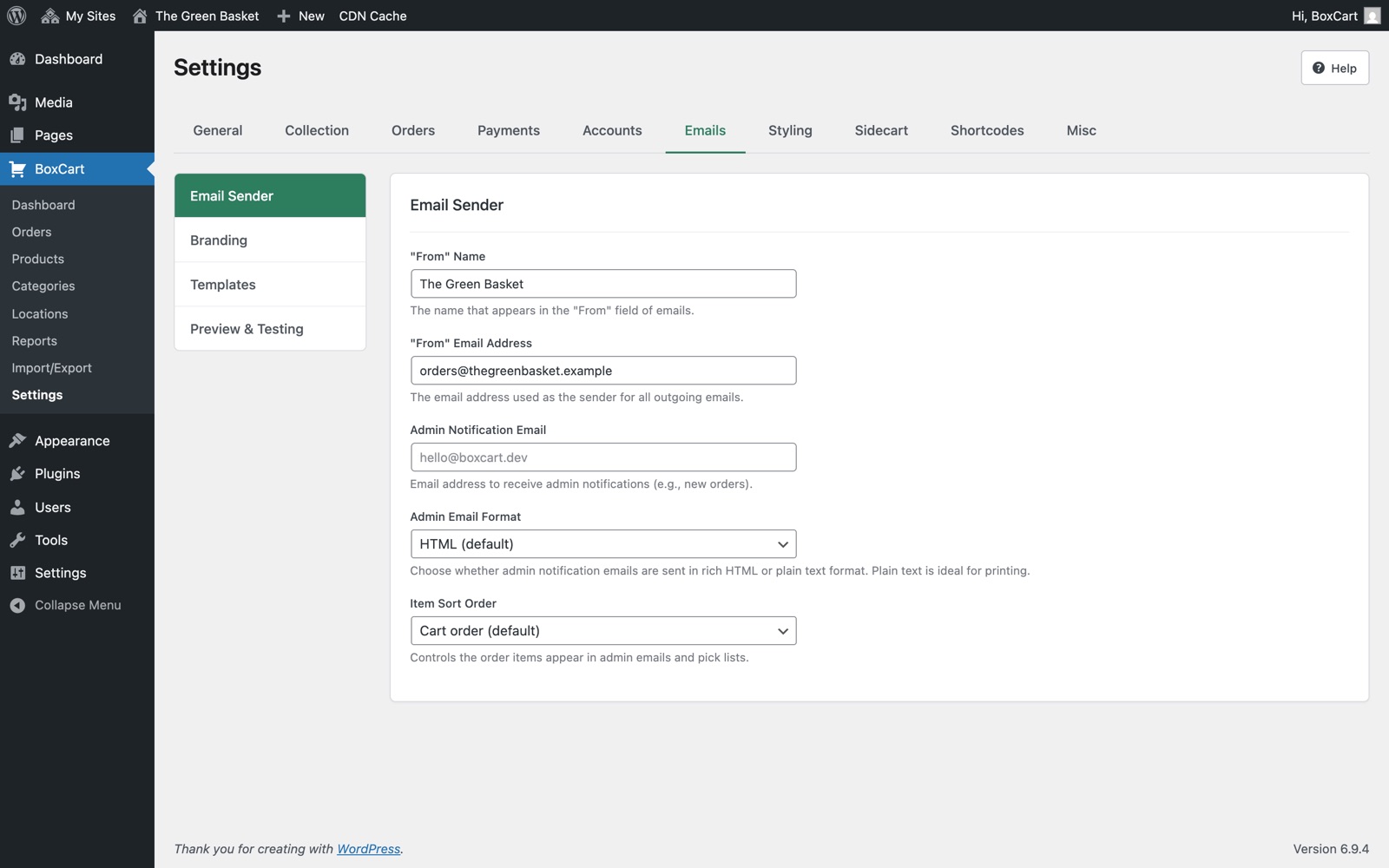
Sender Settings
The sender settings control who your emails appear to come from and where admin notifications are delivered. Configure these under BoxCart → Settings → Emails → Email Sender.
| Setting | Database Key | Default | Description |
|---|---|---|---|
| "From" Name | email_from_name |
Your site name | The name that appears in the "From" field of all outgoing emails. |
| "From" Email Address | email_from_address |
WordPress admin email | The email address used as the sender for all outgoing emails. |
| Admin Notification Email | admin_email |
WordPress admin email | The email address that receives admin notifications such as new order alerts and low stock warnings. |
Use a dedicated email address for your store (e.g. orders@yourdomain.com) rather than a personal address. This helps with deliverability and makes it easier for customers to recognise your emails.
Email Branding
Customise the visual appearance of your email templates to match your store's brand identity. These settings are found under BoxCart → Settings → Emails → Branding.
| Setting | Database Key | Default | Description |
|---|---|---|---|
| Email Logo | email_logo_id |
None | Upload a logo to display in the email header. Recommended size: 200px wide, PNG or JPG format. |
| Header Background Colour | email_header_colour |
Falls back to primary colour | The background colour of the email header area where the logo is displayed. |
| Accent Colour | email_accent_colour |
Falls back to primary colour | Used for buttons, links, and highlighted elements within the email body. |
| Footer Text Colour | email_footer_colour |
#666666 |
The text colour used in the email footer area. |
| Footer Text | email_footer_text |
Empty (uses default) | Custom footer text displayed at the bottom of every email. Leave blank to use the default footer. |
If you do not set the header background or accent colours, BoxCart will automatically use your store's primary colour from the Styling settings. This ensures visual consistency between your storefront and your emails.
Email Templates
BoxCart provides ten configurable email templates. Each template can be individually enabled or disabled and has editable subject lines, headings, and message content. Manage templates under BoxCart → Settings → Emails → Templates.
| Template | Template Key | Recipient | Default Subject | Description |
|---|---|---|---|---|
| Order Confirmation | order_confirmation |
Customer | Order Confirmation - #{order_number} |
Sent to the customer immediately after a successful order. Includes order details, collection information, itemised list, and payment info. |
| New Order (Admin) | new_order_admin |
Admin | New Order - #{order_number} |
Notifies the admin when a new order is placed. Includes customer details, items, payment info, and a "View in Admin" button. |
| Status: Preparing | status_processing |
Customer | Order Update - #{order_number} |
Sent when the order status changes to "Preparing". Lets the customer know their order is being prepared. |
| Status: Ready for Collection | status_ready |
Customer | Order Ready for Collection - #{order_number} |
Sent when the order is ready to be collected. Includes collection location details and time slot. |
| Status: Completed | status_completed |
Customer | Order Completed - #{order_number} |
Sent after the order has been collected and marked as completed. |
| Status: Cancelled | status_cancelled |
Customer | Order Cancelled - #{order_number} |
Sent when an order is cancelled, informing the customer of the cancellation. |
| Order Modified (Customer) | order_modified |
Customer | — | Sent to the customer when their order has been modified. Uses template file order-modified.php. |
| Order Modified (Admin) | order_modified_admin |
Admin | — | Sent to the admin when a customer modifies their order. Uses template file order-modified-admin.php (also has plain-text version). |
| Customer Message (Admin) | order_message_to_admin |
Admin | — | Sent to the admin when a customer sends a message about their order. Uses template file order-message-to-admin.php (also has plain-text version). |
| Customer Message (Customer) | order_message_to_customer |
Customer | — | Sent to the customer when the admin replies to their message. Uses template file order-message-to-customer.php. |
Each template exposes the following editable fields:
| Field | Database Key Pattern | Input Type | Description |
|---|---|---|---|
| Enabled | email_templates[{key}][enabled] |
Toggle | Enable or disable this email. When disabled, the email will not be sent even when the trigger event occurs. |
| Subject | email_templates[{key}][subject] |
Text | The email subject line. Supports template placeholders. |
| Heading | email_templates[{key}][heading] |
Text | The main heading displayed at the top of the email body. |
| Message | email_templates[{key}][message] |
Textarea | The primary message body content shown beneath the heading. |
| Additional Text | email_templates[{key}][additional_text] |
Textarea | Extra text appended after the main content. Only available on templates that support it. |
You can reset any template back to its defaults using the reset button in the template editor. This is useful if you want to undo custom changes and start fresh.
System Emails
Alongside the editable templates above, BoxCart sends two system emails about payments: Payment Received, sent to the customer when you confirm a bank transfer, and Payment Failed, sent to you when a card payment fails. These are sent automatically by the plugin and are not editable templates, so they don't appear in the Templates list.
Template Placeholders
BoxCart provides a set of merge tags (placeholders) that are dynamically replaced with real order data when the email is sent. You can use these placeholders in the subject, heading, message, and additional text fields of any template.
| Placeholder | Replaced With |
|---|---|
{customer_name} |
The customer's full name |
{customer_first_name} |
The customer's first name only |
{order_number} |
The order reference number (e.g. BC-1042) |
{order_total} |
The formatted order total including currency symbol |
{collection_date} |
The scheduled collection date |
{collection_time} |
The selected collection time slot |
{location_name} |
The name of the collection location |
{site_name} |
Your WordPress site name |
Example usage:
A subject line of Hi {customer_first_name}, your order #{order_number} is confirmed! would render as something like "Hi Sarah, your order #BC-1042 is confirmed!" when sent.
Placeholders work in all editable text fields: subject, heading, message, and additional text. They are replaced at send time, so the preview feature will show them populated with mock data.
Preview and Testing
BoxCart includes built-in tools to preview and test your email templates before they reach your customers. These tools are accessible from the email template editor in BoxCart → Settings → Emails.
Live Email Preview
Each email template can be previewed in real time directly within the admin. The preview renders the full HTML email in an iframe, populated with realistic mock order data. This lets you see exactly how your emails will look to customers, including:
- Your logo and branding colours
- The subject, heading, and message content
- Placeholder values replaced with sample data
- The complete email layout including header and footer
The preview updates as you make changes, so you can fine-tune your templates visually without sending test emails.
Send Test Email
To verify deliverability and rendering across email clients, you can send a test email to any address. Enter the recipient email address and click Send Test. The test email uses the same mock order data as the preview, giving you a realistic representation of what your customers will receive.
Send test emails to multiple email clients (Gmail, Outlook, Apple Mail) to check that your branding and layout render correctly across different platforms.
Email Queue
BoxCart uses a non-blocking email queue to ensure that email sending never slows down your store's checkout or admin operations. Understanding how the queue works can help you troubleshoot delivery issues.
How the Queue Works
-
Event triggers an email
An action such as placing an order or changing an order status fires a WordPress hook (e.g.
boxcart_order_createdorboxcart_order_status_changed). -
Email is queued
Instead of sending the email immediately, BoxCart schedules it as a single cron event using
wp_schedule_single_event()with theboxcart_send_queued_emailhook. -
Cron is spawned
BoxCart calls
spawn_cron()to trigger WordPress cron processing. This sends a non-blocking HTTP request back to the site, so the original request (e.g. the checkout response) completes without waiting for the email to be sent. -
Email is dispatched
The cron handler (
BoxCart_Email::process_queued_email()) renders the HTML template, applies branding and placeholder values, and sends the email viawp_mail().
Because emails are sent via wp_cron, they depend on your site receiving regular traffic or having a real cron job configured. If your site has low traffic, consider setting up a system-level cron job to call wp-cron.php at regular intervals (e.g. every minute) to ensure timely email delivery.
Developer Filters
Developers can customise email behaviour using the following filters:
| Filter | Parameters | Description |
|---|---|---|
boxcart_email_recipient |
$to, $order |
Modify the recipient email address before sending. |
boxcart_email_subject |
$subject, $template_type, $order |
Modify the email subject line. |
boxcart_email_content |
$content, $template_type, $order |
Modify the rendered email HTML content. |
boxcart_email_headers |
$headers, $to, $subject |
Modify the email headers (e.g. add CC or BCC addresses). |
See the Hooks & Filters reference for more details on using these filters in your custom code.