 BoxCart
Shortcodes & Blocks
BoxCart provides five shortcodes and corresponding Gutenberg blocks to embed every major store page into your WordPress site.
Overview
Each core store page - Products, Basket, Checkout, Account, and Mini Basket - has a dedicated shortcode and a matching Gutenberg block. You can use whichever method suits your workflow: shortcodes work in any editor (Classic Editor, page builders, widget areas, theme templates), while Gutenberg blocks offer a visual preview inside the block editor.
All shortcodes are registered in the BoxCart_Shortcodes class (includes/frontend/class-boxcart-shortcodes.php).
After creating your pages, remember to assign them in BoxCart → Settings → General under the Page Setup section so BoxCart knows which page serves each role.
Products Shortcode
The [boxcart_products] shortcode renders the full product catalogue, including grid/table view toggle, category filtering, search, and pagination.
[boxcart_products]
Attributes
| Attribute | Type | Default | Description |
|---|---|---|---|
category | string (slug) | '' | Filter by category slug. Leave empty to show all categories. |
limit | int | From settings (products_per_page) | Number of products per page before pagination kicks in. |
columns | int (2–4) | From settings (products_per_row) | Products per row on desktop in grid view. |
show_filter | yes / no | From settings (show_category_filter) | Show or hide the category filter dropdown. |
show_search | yes / no | From settings (show_search) | Show or hide the product search box. |
show_pills | yes / no | From settings (show_category_pills) | Show or hide category pill buttons above the product grid. |
pagination | load_more / numbered / none | load_more | Pagination style. load_more appends products via AJAX, numbered shows page numbers, none shows all products. |
Example with attributes:
[boxcart_products category="bakery" limit="12" columns="3" show_filter="yes" pagination="numbered"]
When no attributes are specified, all values fall back to the settings configured in BoxCart → Settings → Styling. Use attributes only when you need to override the defaults for a specific page.
Basket Shortcode
The [boxcart_basket] shortcode renders the full shopping basket page, displaying all items the customer has added, quantities, line totals, and the overall order total.
[boxcart_basket]
This shortcode accepts no attributes. Place it on a dedicated page and assign that page as the Basket Page in BoxCart → Settings → General.
Checkout Shortcode
The [boxcart_checkout] shortcode renders the checkout page where customers enter their details, select a collection slot, choose a payment method, and place their order. It also handles the order confirmation display when a valid order token is present in the URL.
[boxcart_checkout]
This shortcode accepts no attributes. Place it on a dedicated page and assign that page as the Checkout Page in BoxCart → Settings → General.
Account Shortcode
The [boxcart_account] shortcode renders the customer account area. When a visitor is not logged in, it displays login and registration forms. When logged in, it shows one of several views based on the ?view= query parameter in the URL.
[boxcart_account]
Account Views
| View Parameter | Page Displayed |
|---|---|
| (none) | Account dashboard |
orders | Order history |
order (with ?order=) | Single order view |
edit | Edit details and change password |
This shortcode accepts no attributes. The view is controlled entirely via URL query parameters.
Mini Basket Shortcode
The [boxcart_mini_basket] shortcode renders a compact basket button that can be placed in your site header, navigation menu, or widget area. Clicking the mini basket opens the sidecart panel.
[boxcart_mini_basket]
Attributes
| Attribute | Type | Default | Description |
|---|---|---|---|
style | string | icon-count | Display style. Allowed values: icon-count (cart icon with item count badge), icon-text (cart icon with total price), or text-only (text-only display). |
Example with a style attribute:
[boxcart_mini_basket style="icon-text"]
Gutenberg Blocks
BoxCart registers five Gutenberg blocks that mirror the shortcodes. These blocks are available in the WordPress block editor (Gutenberg) and provide a visual preview of the store component directly within the editor.
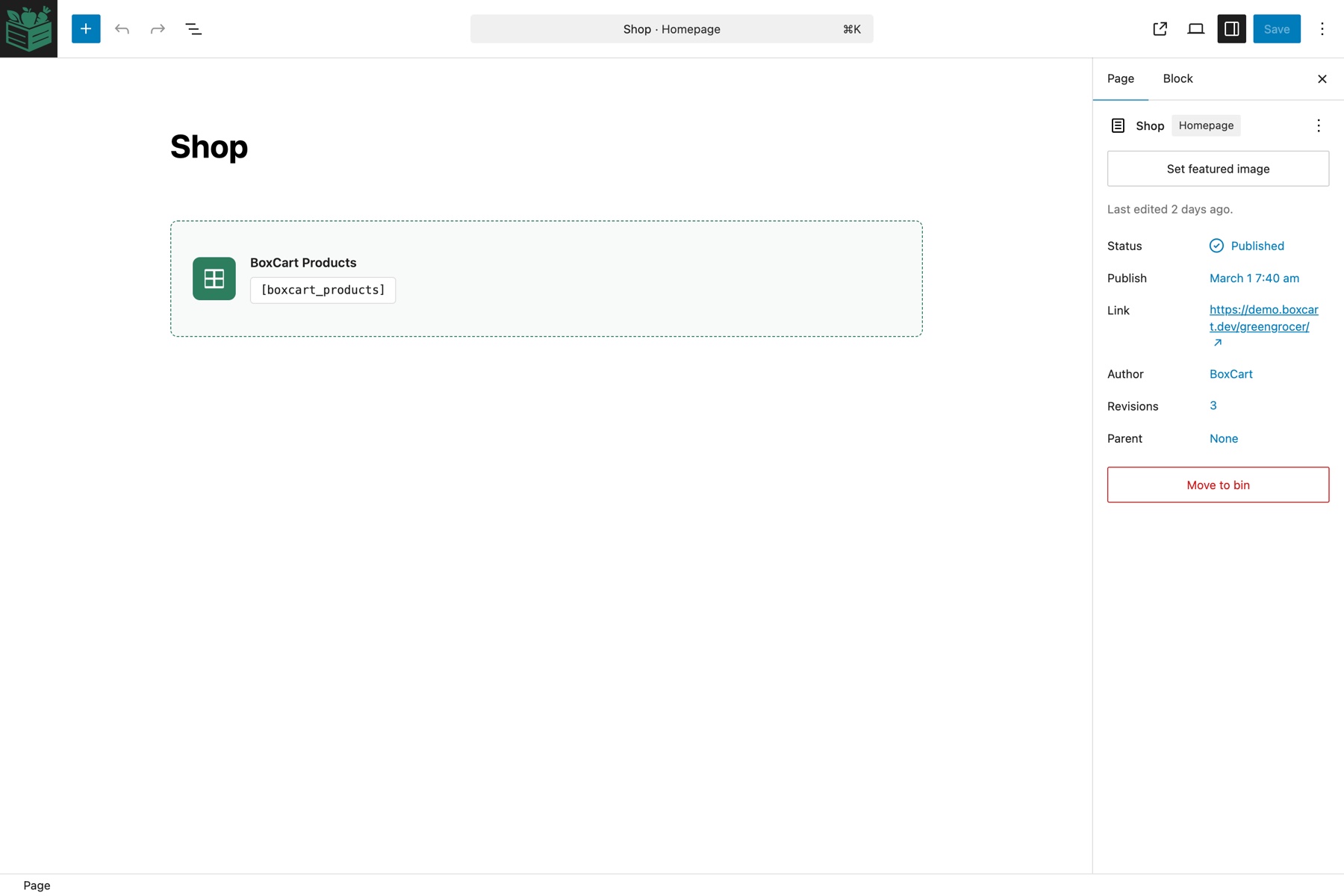
Available Blocks
| Block Name | Equivalent Shortcode | Description |
|---|---|---|
| BoxCart Products | [boxcart_products] | Product catalogue with all filtering and pagination options |
| BoxCart Basket | [boxcart_basket] | Shopping basket page |
| BoxCart Checkout | [boxcart_checkout] | Checkout and order confirmation page |
| BoxCart Account | [boxcart_account] | Customer account area |
| BoxCart Mini Basket | [boxcart_mini_basket] | Compact basket button for headers and navigation |
Inserting a Block
-
Open the block inserter
In the WordPress block editor, click the + button in the toolbar or press / in an empty paragraph block.
-
Search for BoxCart
Type BoxCart in the search field. All five BoxCart blocks will appear in the results.
-
Select and configure
Click the desired block to insert it. For the Products and Mini Basket blocks, use the block sidebar panel to configure attributes (category, columns, pagination style, etc.) - these map directly to the shortcode attributes described above.
Blocks provide the same options as their shortcode counterparts. The Products block sidebar includes dropdowns and toggles for category, columns, filter visibility, search, pills, and pagination - matching the shortcode attributes exactly.
Shortcodes vs Blocks
Both shortcodes and Gutenberg blocks produce identical frontend output. The choice between them depends on your editor preference and site setup.
| Feature | Shortcodes | Gutenberg Blocks |
|---|---|---|
| Editor compatibility | Any editor (Classic, Gutenberg, page builders, widgets, theme templates) | Gutenberg block editor only |
| Visual preview | No - displays as text in the editor | Yes - shows a visual placeholder in the editor |
| Configuration | Via shortcode attributes typed manually | Via the block sidebar panel with dropdowns and toggles |
| Frontend output | Identical | Identical |
| PHP templates | Can be used with do_shortcode() in theme files | Not directly usable in PHP templates |
| Widget areas | Supported (e.g. mini basket in a sidebar widget) | Supported in block-based widget areas (WordPress 5.8+) |
Technical Notes
wpautop Handling
WordPress applies the wpautop filter to post content, which automatically wraps text in <p> tags and converts double line breaks to <br> tags. This can break the flex and grid layouts used by BoxCart shortcode output.
To prevent this, the BoxCart_Shortcodes class removes the wpautop filter at priority 9 (before do_shortcode runs at priority 11) and restores it at priority 11 after the shortcodes have been processed. This ensures that BoxCart output renders cleanly without unwanted <p> and <br> tags, while leaving wpautop intact for the rest of your content.
If you notice unexpected spacing or broken layouts on a BoxCart page, check whether another plugin is re-adding wpautop at a conflicting priority. BoxCart handles this automatically, but conflicts can occur with plugins that manipulate the same filter.