 BoxCart
Products
Create and manage your product catalogue with categories, quantity types, stock tracking, and flexible display options for card and table views.
Adding Products
Products are managed through the BoxCart → Products admin screen. Each product is stored as a custom post type (boxcart_product) with dedicated meta fields for pricing, stock, and display settings.
-
Navigate to the products screen
In your WordPress admin, go to BoxCart → Products and click the Add Product button.
-
Enter the product details
Fill in the following fields:
- Product Name: The title displayed to customers
- Price: The base price for the product
- SKU: An optional stock-keeping unit code for internal reference
- Featured Image: Upload or select an image from the media library
- Category: Assign the product to one or more categories
-
Configure stock and quantity options
Set the stock status (in stock or out of stock), stock quantity, and optionally assign quantity type presets such as "per kg" or "per bunch". See the Quantity Types section below for details.
-
Publish the product
Toggle the product to Active and save. The product will now appear on your storefront in both card and table views.
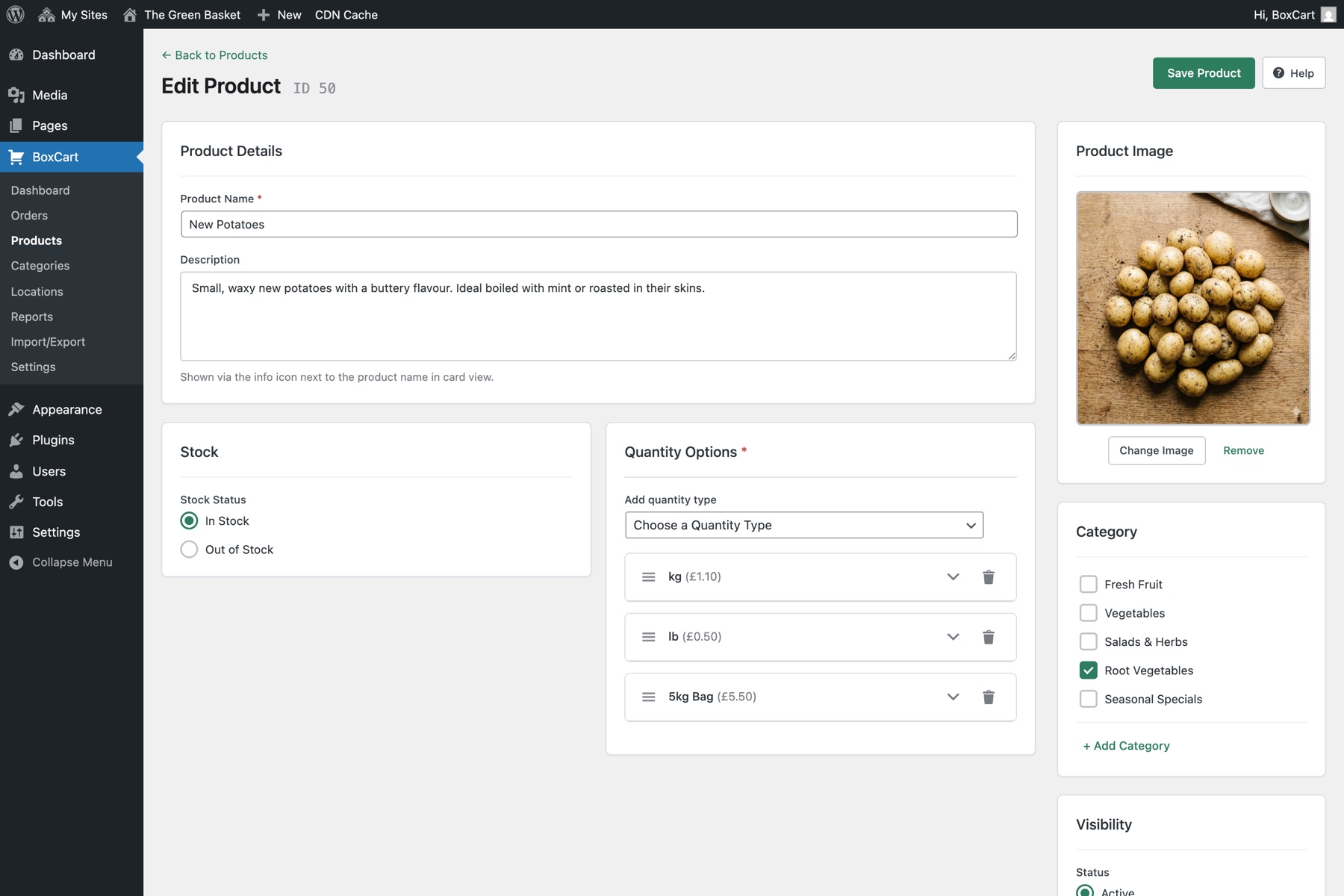
You can duplicate an existing product from the product list to quickly create similar items. Use the duplicate action to copy the product name, price, category, and quantity type settings.
Product Categories
Products are organised using the boxcart_product_category custom taxonomy. Categories are hierarchical, so you can create parent and child categories to build a structured catalogue.
Manage categories from BoxCart → Categories, where you can:
- Add categories: Create new categories with inline add/edit
- Drag to reorder: Rearrange the display order by dragging categories into position
- View product counts: See how many products belong to each category
- Edit or delete: Inline editing and deletion with confirmation
The sort order you set here determines the order categories appear in the filter dropdown and pill buttons on the storefront.
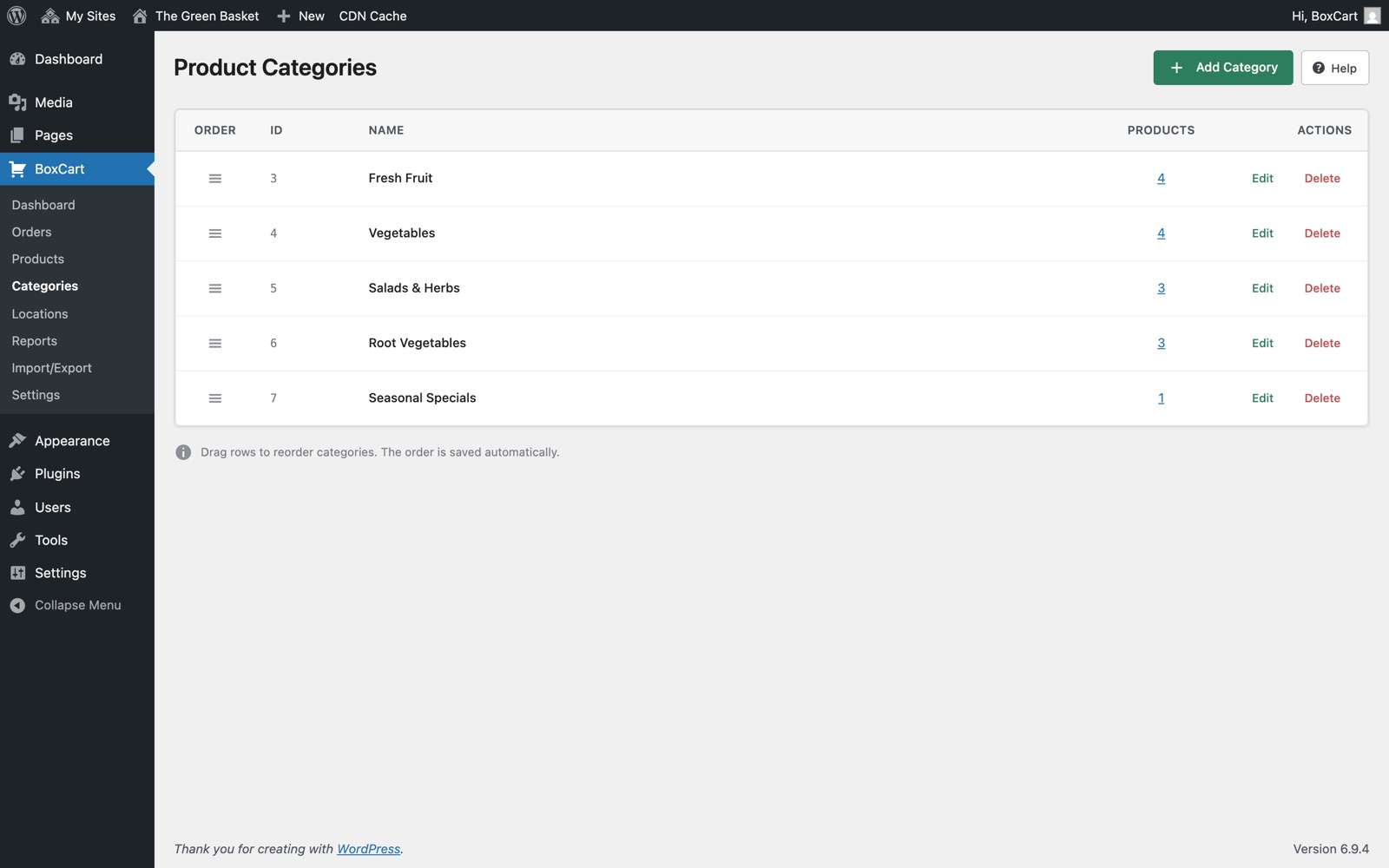
Categories can also be imported and exported via CSV from the Import / Export screen.
Quantity Types
Quantity types let you sell products in different units of measurement. Each product can have one or more quantity type presets. For example, a product might be available "per kg", "per bunch", or "each", each with its own price and increment rules.
When a product has multiple quantity types, customers see a tab bar on the product card or a dropdown in table view, allowing them to choose how they want to purchase the item.
Each quantity type is defined by the following parameters:
| Parameter | Type | Description |
|---|---|---|
unit_label |
varchar(50) | The singular unit name displayed to customers (e.g. "kg", "bunch", "punnet"). |
unit_label_plural |
varchar(50) | The plural form of the unit name (e.g. "kgs", "bunches", "punnets"). Used when quantity is greater than one. |
display_label |
varchar(20) | A short label shown on the quantity type tab or button (e.g. "Per Kg", "Each"). |
price_prefix |
varchar(20) | Text shown before the price (e.g. "per"). Defaults to "per". |
price_per_unit |
decimal(10,2) | The price charged for one unit of this quantity type. |
allow_decimals |
boolean | Whether the customer can enter decimal quantities. Enable this for weight-based units like kilograms. |
step_increment |
decimal(10,3) | The increment for the +/- buttons (e.g. 0.1 for 100g steps, 1 for whole units). Defaults to 1. |
min_quantity |
decimal(10,3) | The minimum quantity a customer can add. Defaults to 1. |
max_quantity |
decimal(10,3) | The maximum quantity a customer can add. Leave empty for no upper limit. |
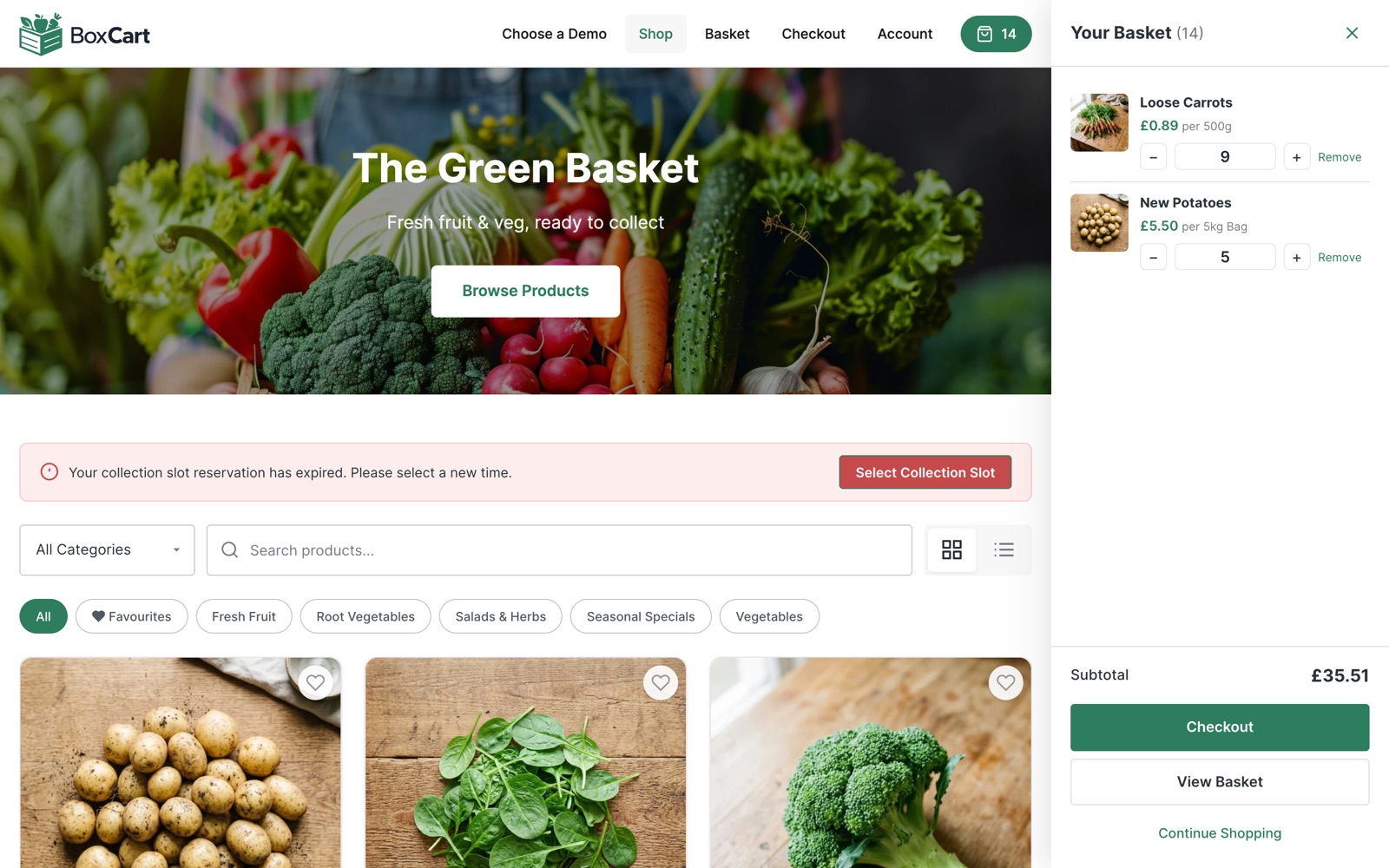
For a product sold by weight, set allow_decimals to true, step_increment to 0.1, and min_quantity to 0.1. This lets customers order in 100g increments with a minimum of 100g.
Card View and Table View
BoxCart offers two display modes for your product catalogue, and customers can switch between them using a toggle button on the storefront.
Card View
Card view displays products in a responsive grid layout. Each product is shown as a card with its image, name, price, quantity selector, and add-to-basket button.
| Setting | Key | Default | Description |
|---|---|---|---|
| Products Per Row (Desktop) | products_per_row |
3 |
Number of columns in the grid on desktop (2–4). |
| Products Per Row (Mobile) | products_per_row_mobile |
2 |
Number of columns on mobile devices (1–2). |
| Products Per Page | products_per_page |
12 |
Products shown before "Load More" pagination (1–500). |
| Card Style | card_style |
shadow |
Visual style of product cards: shadow, border, or minimal. |
Table View Pro
Table view presents products in a compact, spreadsheet-style layout that is ideal for stores with many items. On mobile, table rows are automatically converted to stacked cards for readability.
| Setting | Key | Default | Description |
|---|---|---|---|
| Products to Display | table_products_limit |
-1 |
Number of products to show (-1 for all). |
| Default View | default_product_view |
cards |
Which view loads first: cards or table. |
| Show Image Column | table_show_image |
true |
Display product thumbnail in the table. |
| Show Price Column | table_show_price |
true |
Display the product price in the table. |
| Striped Rows | table_striped_rows |
true |
Alternate row background colours for readability. |
| Unit Selector Style | table_unit_style |
buttons |
How quantity types are presented in table rows: buttons or dropdown. |
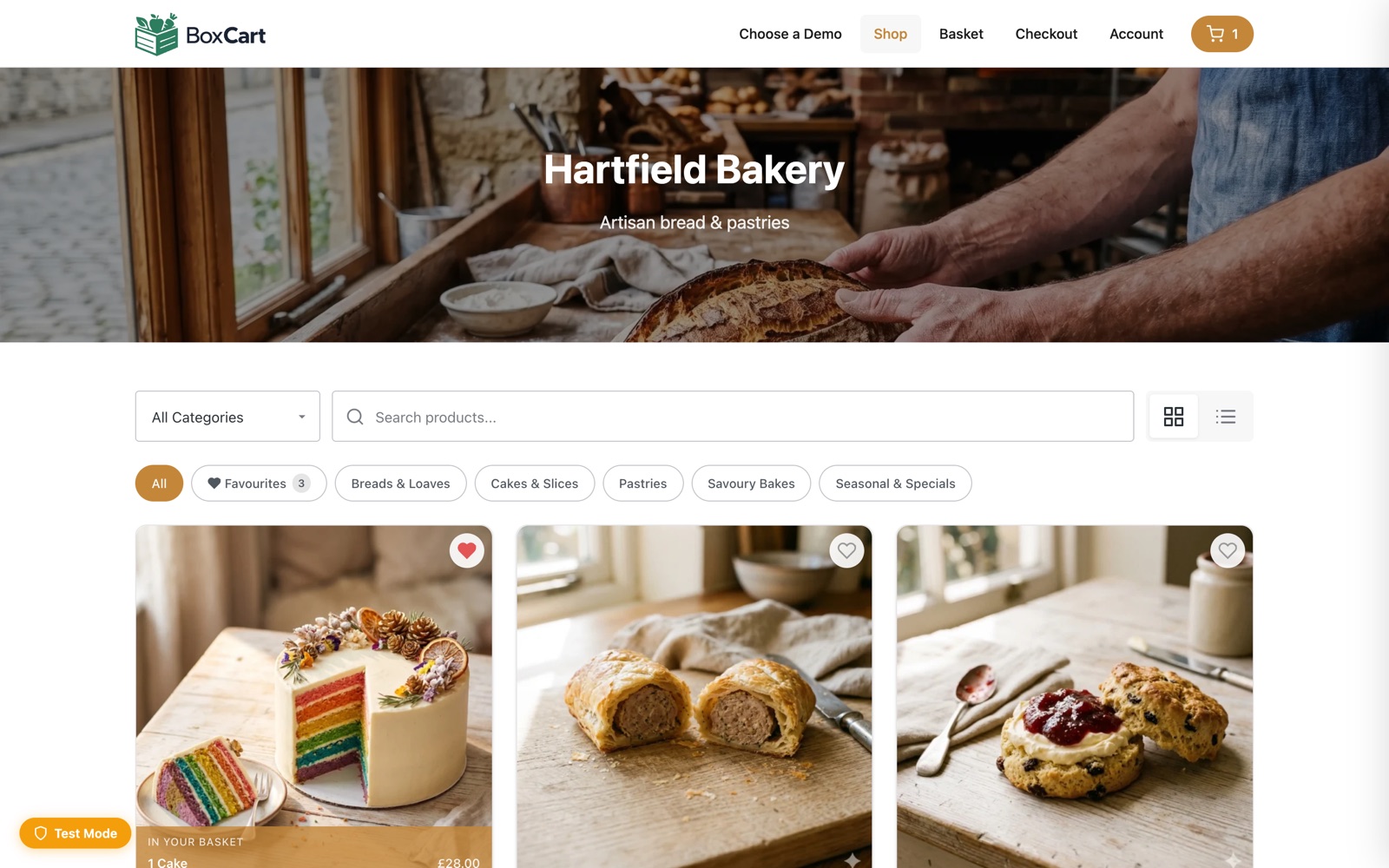
You can enable or disable each view independently using the enable_card_view and enable_table_view settings. If only one view is enabled, the toggle button is hidden automatically.
Stock Management
BoxCart provides simple stock management to track product availability. Stock settings are configured globally in BoxCart → Settings → General and applied per product.
Stock Status
Each product has a stock status that can be set to one of two values:
- In Stock: The product is available for purchase
- Out of Stock: The product cannot be added to the basket. An "Out of Stock" badge is displayed on the product card.
Global Stock Settings
| Setting | Key | Default | Description |
|---|---|---|---|
| Stock Management | stock_management |
simple |
Options: simple (in stock / out of stock) or none (disabled). |
| Hide Out of Stock Products | hide_out_of_stock |
false |
When enabled, out-of-stock products are completely hidden from the storefront rather than shown with a badge. |
Favourites Pro
Logged-in customers can mark products as favourites by clicking the heart icon on any product card or table row. Favourite products are stored in the customer's WordPress user meta as a serialised array of product IDs.
Favourites provide the following functionality:
- Heart icon toggle: Click to add or remove a product from favourites. The heart icon colour is configurable via the
favourite_coloursetting (default:#E25555). - Filter by favourites: Customers can filter the product listing to show only their favourite products for quick reordering.
- Persistent storage: Favourites are tied to the user account and persist across sessions and devices.
The favourites feature is only available to logged-in customers. Non-logged-in visitors will not see the heart icon on product cards.
Category Filtering and Search
BoxCart includes three tools to help customers find products quickly on the storefront. Each can be independently enabled or disabled in BoxCart → Settings → Styling → Grid Options.
| Feature | Setting Key | Default | Description |
|---|---|---|---|
| Category Filter Dropdown | show_category_filter |
true |
A dropdown menu above the product grid that lets customers filter by a single category. |
| Category Pills | show_category_pills |
true |
Clickable pill-style buttons for each category, displayed below the filter bar. Customers can quickly tap a category to filter the list. |
| Search Box | show_search |
true |
A text search input that filters products by name in real time as the customer types. |
All three filtering tools work together. For example, a customer can select a category from the dropdown or pills, then further narrow results by typing in the search box.
Products Shortcode
The [boxcart_products] shortcode renders the full product catalogue on any WordPress page. It supports both card view and table view, along with filtering, search, and pagination.
[boxcart_products]
Shortcode Attributes
| Attribute | Type | Default | Description |
|---|---|---|---|
category |
string (slug) | '' |
Filter products by category slug. Leave empty to show all categories. |
limit |
int | From settings | Number of products per page before pagination. Inherits from the products_per_page setting. |
columns |
int (2–4) | From settings | Number of product columns on desktop in card view. Inherits from the products_per_row setting. |
show_filter |
'yes' / 'no' |
From settings | Show or hide the category filter dropdown. Inherits from the show_category_filter setting. |
show_search |
'yes' / 'no' |
From settings | Show or hide the product search box. Inherits from the show_search setting. |
show_pills |
'yes' / 'no' |
From settings | Show or hide the category pill buttons. Inherits from the show_category_pills setting. |
pagination |
string | 'load_more' |
Pagination style: load_more, numbered, or none. |
Examples
Display only products from the "vegetables" category with 4 columns:
[boxcart_products category="vegetables" columns="4"]Show 24 products per page with numbered pagination and no search box:
[boxcart_products limit="24" pagination="numbered" show_search="no"]A minimal products grid with no filtering or search controls:
[boxcart_products show_filter="no" show_search="no" show_pills="no"]