 BoxCart
Styling & Customisation
Make BoxCart look and feel like a natural part of your brand. Every colour, font, button shape, and layout option can be configured from BoxCart → Settings → Styling (no CSS required).
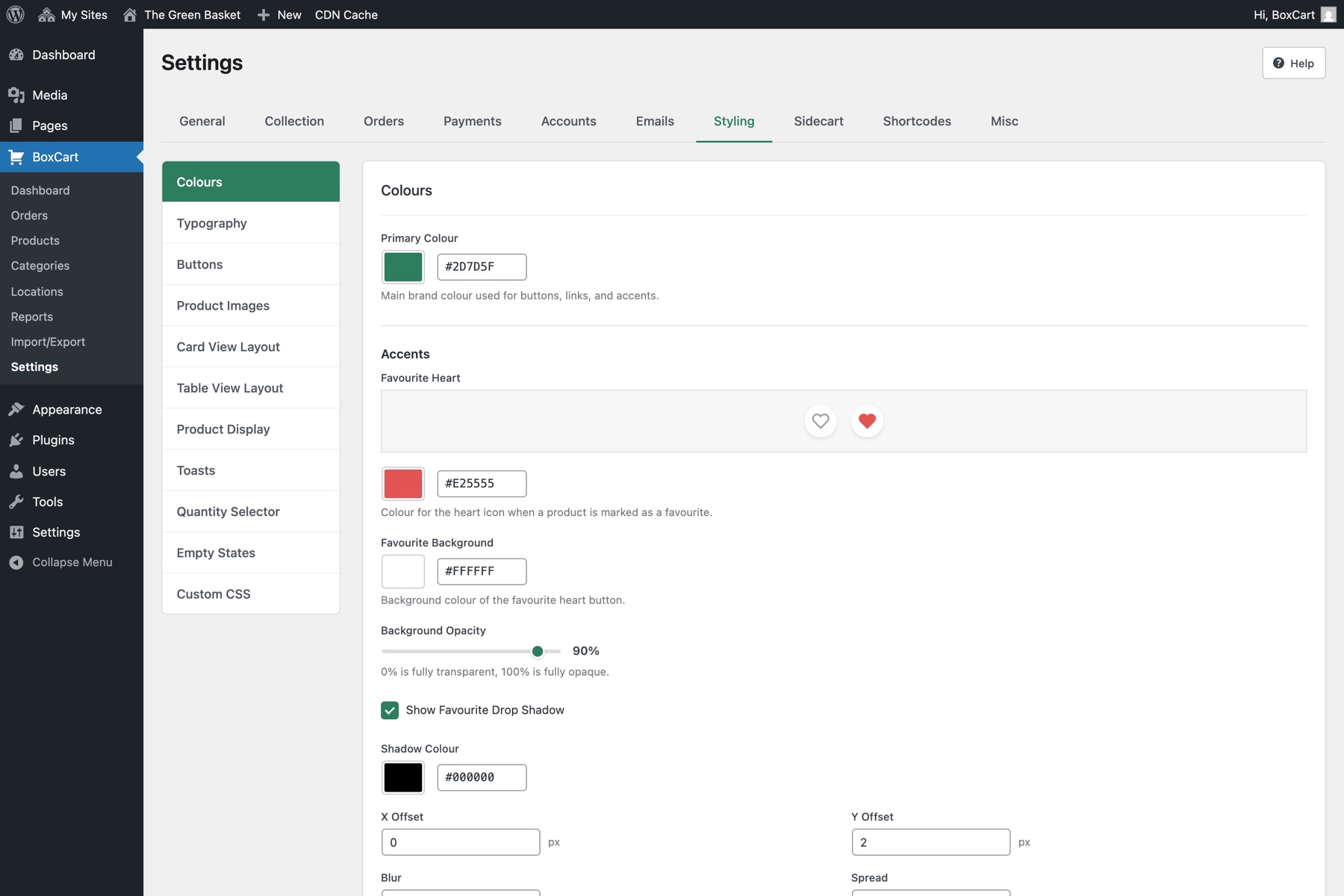
Colours
The two global colours underpin every element across the storefront: buttons, links, badges, price highlights, and more. Changing these two values updates the entire palette in one go.
| Setting | Database Key | Default | Description |
|---|---|---|---|
| Primary Colour | primary_colour |
#2D7D5F |
Used for primary buttons, links, active states, price accents, and the sidecart action buttons. |
| Secondary Colour | secondary_colour |
#8B7355 |
Used for secondary accents and complementary UI elements. |
Choose a primary colour with sufficient contrast against white text. The default green (#2D7D5F) passes WCAG AA for large text. You can test your choice at WebAIM's contrast checker.
Typography
BoxCart lets you choose separate fonts for body copy and headings, plus a global base font size. Fonts from Google Fonts are self-hosted for GDPR compliance, so no external requests are made to Google servers.
| Setting | Database Key | Type | Default | Description |
|---|---|---|---|---|
| Body Font | font_family |
Select | theme |
The typeface used for body text, table cells, and form inputs. |
| Heading Font | heading_font_family |
Select | theme |
The typeface used for product titles, section headings, and card labels. |
| Base Font Size | font_size_base |
Number (12–24) | 16 px |
The root font size in pixels. All other sizes scale proportionally. |
Available font choices:
- Theme Default: inherits whatever your active WordPress theme specifies
- System UI: uses the operating system’s native font stack
- Roboto
- Open Sans
- Lato
- Montserrat
- Poppins
- Inter
- Raleway
- Nunito
- Playfair Display
- Merriweather
Pairing a serif heading font (e.g. Playfair Display or Merriweather) with a clean sans-serif body font (e.g. Inter or Lato) works particularly well for farm shops and artisan brands.
Buttons
Control the shape and colour of every button in your store: from “Add to Basket” to checkout actions.
| Setting | Database Key | Default | Description |
|---|---|---|---|
| Button Shape | button_style |
filled |
Options: filled, outline, rounded. |
| Primary Button Background | button_colour |
Falls back to primary_colour |
Background colour for primary action buttons. |
| Primary Button Hover | button_hover_colour |
#246850 |
Background colour on hover/focus. |
| Primary Button Text | button_text_colour |
#ffffff |
Text colour for primary buttons. |
| Secondary Button Background | button_secondary_colour |
#ffffff |
Background colour for secondary/cancel buttons. |
| Secondary Button Hover | button_secondary_hover_colour |
#f6f7f7 |
Hover state for secondary buttons. |
| Secondary Button Text | button_secondary_text_colour |
#2C3338 |
Text colour for secondary buttons. |
| Disabled Button Background | button_disabled_colour |
#e5e5e5 |
Background colour when a button is disabled. |
| Disabled Button Text | button_disabled_text_colour |
#999999 |
Text colour for disabled buttons. |
The rounded button shape applies a pill-like border radius, giving your store a softer, more modern feel. The outline style works well if your theme already has a strong colour background.
Card View Layout
When products are displayed in card view (the default), these settings control the grid layout and card appearance.
| Setting | Database Key | Default | Description |
|---|---|---|---|
| Products Per Row (Desktop) | products_per_row |
3 |
Number of product cards per row on desktop screens. Range: 2–4. |
| Products Per Row (Mobile) | products_per_row_mobile |
2 |
Number of product cards per row on mobile screens. Range: 1–2. |
| Products Per Page | products_per_page |
12 |
Number of products shown before pagination. Range: 1–500. |
| Product Card Style | card_style |
shadow |
Options: shadow (subtle drop shadow), border (solid border), minimal (no border or shadow). |
For stores with a large catalogue, 4 columns on desktop keeps everything scannable. For stores with high-quality product photography, 2–3 columns lets images shine.
Table View Layout Pro
Table view presents products in a compact, spreadsheet-style list: ideal for stores with many items, or where customers order by weight and volume. These settings let you fine-tune columns, colours, and borders.
| Setting | Database Key | Default | Description |
|---|---|---|---|
| Products to Display | table_products_limit |
-1 (all) |
Maximum number of products shown in table view. Use -1 for all products. |
| Default View | default_product_view |
cards |
The view shown when a customer first loads the products page. Options: cards, table. |
| Enable Card View | enable_card_view |
true |
Allow customers to switch to card view. If disabled, only table view is available. |
| Enable Table View | enable_table_view |
true |
Allow customers to switch to table view. If disabled, only card view is available. |
| Show Image Column | table_show_image |
true |
Display product thumbnail images in the table. |
| Show Category Column | table_show_category |
true |
Display the product category in a separate column. |
| Show Price Column | table_show_price |
true |
Display the product price column. |
| Unit Selector Style | table_unit_style |
buttons |
How quantity units are presented. Options: buttons (inline toggle buttons), dropdown (select menu). |
| Striped Rows | table_striped_rows |
true |
Alternate row background colours for easier scanning. |
| Row Background Colour | table_row_primary_colour |
#FFFFFF |
Background colour for odd (primary) rows. |
| Alternate Row Colour | table_row_secondary_colour |
#F6F7F7 |
Background colour for even (alternate) rows when striping is enabled. |
| Row Hover Colour | table_hover_colour |
#E8F5F0 |
Background colour when hovering over a table row. |
| Header Background Colour | table_header_colour |
#F6F7F7 |
Background colour for the table header row. |
| Show Table Border | table_show_border |
false |
Wrap the table in a visible border. |
| Border Width | table_border_width |
1 px |
Thickness of the table border in pixels. |
| Border Colour | table_border_colour |
#DCDCDE |
Colour of the table border. |
| Show Table Shadow | table_show_shadow |
true |
Apply a box shadow around the table. |
| Shadow Colour | table_shadow_colour |
#000000 |
Base colour of the shadow (combined with opacity below). |
| Shadow X Offset | table_shadow_x |
0 |
Horizontal shadow offset in pixels. |
| Shadow Y Offset | table_shadow_y |
1 |
Vertical shadow offset in pixels. |
| Shadow Blur | table_shadow_blur |
3 |
Shadow blur radius in pixels. |
| Shadow Spread | table_shadow_spread |
0 |
Shadow spread radius in pixels. |
| Shadow Opacity | table_shadow_opacity |
8 % |
Opacity of the table shadow (0–100%). |
| Table Border Radius | table_border_radius |
12 px |
Rounded corner radius for the table container. |
If you sell products by weight (e.g. per kg, per 100g), table view with buttons as the unit selector style gives customers the fastest ordering experience. For stores with fewer unit options, the dropdown style keeps the UI compact.
Sidecart
The sidecart is a slide-in panel that opens when a customer adds an item or clicks the mini basket. It gives shoppers a quick view of their basket without leaving the products page.
Behaviour Settings
| Setting | Database Key | Default | Description |
|---|---|---|---|
| Enable Sidecart Panel | sidecart_enabled |
true |
When enabled, clicking the mini basket opens the slide-in panel instead of navigating to the basket page. |
| Panel Position | sidecart_position |
right |
Which side the panel slides in from. Options: left, right. |
| Panel Width | sidecart_width |
350 px |
Width of the sidecart panel in pixels (250–600). On mobile the panel is always full-width. |
| Open Effect | sidecart_effect |
overlay |
Options: overlay (slides over page content), push (pushes page content aside). |
| Show Background Overlay | sidecart_show_overlay |
true |
Dim the page behind the sidecart with a semi-transparent overlay. |
| Show “View Basket” Button | sidecart_show_view_basket |
true |
Display a button that navigates to the full basket page. |
| Show “Checkout” Button | sidecart_show_checkout |
true |
Display a button that navigates directly to checkout. |
| Show “Continue Shopping” Button | sidecart_show_continue_shopping |
false |
Display a link to close the sidecart and return to browsing. |
| Auto-open Behaviour | sidecart_auto_open |
first_item |
Controls when the sidecart opens automatically:
|
| Auto-close Delay | sidecart_auto_close_delay |
5 seconds |
Seconds before the sidecart auto-closes (1–30). Only applies when using a non-stay auto-open mode. |
| Keep Open on Product Pages | sidecart_always_open_products |
false |
Keep the sidecart permanently open while browsing the products page. |
| Show Product Images | sidecart_show_images |
true |
Display product thumbnails inside the sidecart. |
| Show Product Prices | sidecart_show_prices |
true |
Display individual product prices next to each item. |
| Show Quantity Controls (+/-) | sidecart_show_quantity_controls |
true |
Let customers adjust quantities directly inside the sidecart. |
| Show Subtotal | sidecart_show_subtotal |
true |
Display the basket subtotal at the bottom of the sidecart. |
Sidecart Colours
| Setting | Database Key | Default |
|---|---|---|
| Show Drop Shadow | sidecart_show_shadow |
true |
| Background | sidecart_background_color |
#ffffff |
| Text | sidecart_text_color |
#2C3338 |
| Border | sidecart_border_color |
#DCDCDE |
| Price | sidecart_price_color |
#2D7D5F |
| Close Button | sidecart_close_color |
#2D7D5F |
| Remove Button | sidecart_remove_color |
#2D7D5F |
| Primary Button Background | sidecart_button_bg_color |
#2D7D5F |
| Primary Button Text | sidecart_button_text_color |
#ffffff |
| Continue Shopping Text | sidecart_continue_color |
Falls back to primary_colour |
| Continue Shopping Hover | sidecart_continue_hover_color |
#1a5a42 |
Mobile Basket Bar
The mobile basket bar is a fixed bar at the bottom of the screen on small devices. It gives customers quick access to their basket without scrolling back to the top of the page.
| Setting | Database Key | Default | Description |
|---|---|---|---|
| Enable Mobile Basket Bar | mobile_bar_enabled |
true |
Show the fixed basket bar on mobile devices. |
| Show Bar When | mobile_bar_show_when |
when_items |
Controls visibility. Options: always (always visible), when_items (only when basket has items), never (disabled). |
| Show Item Count | mobile_bar_show_count |
true |
Display the number of items in the basket. |
| Show Basket Total | mobile_bar_show_total |
true |
Display the basket total amount. |
| Show Collection Slot | mobile_bar_show_slot |
true |
Display the selected collection slot information. |
| Allow Expanding | mobile_bar_allow_expand |
true |
Allow the bar to expand into a mini basket summary when tapped. |
| Primary Button Action | mobile_bar_primary_button |
view_basket |
What happens when the main button is tapped. Options: view_basket, checkout, both (show both buttons). |
Setting the primary button action to checkout reduces steps for mobile users and can increase conversion rates, especially for stores where customers typically order a small number of items.
Badges and Toasts
Badges appear on product cards (e.g. “Out of Stock”) and toasts are the brief notification popups shown when items are added to the basket or an error occurs.
| Setting | Database Key | Default | Description |
|---|---|---|---|
| Out of Stock Badge Colour | out_of_stock_badge_color |
#C44B4B |
Background colour for the “Out of Stock” badge on product cards. |
| Toast Success Colour | toast_success_colour |
#28a745 |
Background colour for success notifications (e.g. “Item added to basket”). |
| Toast Error Colour | toast_error_colour |
#dc3545 |
Background colour for error notifications. |
| Toast Info Colour | toast_info_colour |
#17a2b8 |
Background colour for informational notifications. |
| Heart Icon Colour | favourite_colour |
#E25555 |
Colour of the filled heart icon when a product is marked as a favourite. |
Quantity Selector
The quantity selector appears on product cards and in the basket. These settings control the colours of the tab bar (used when products have multiple unit types) and the +/− stepper buttons.
| Setting | Database Key | Default | Description |
|---|---|---|---|
| Tab Bar Background | qty_tab_bar_bg |
#f3f4f6 |
Background colour for the unit type tab bar. |
| Active Tab | qty_tab_active_bg |
#ffffff |
Background colour of the currently selected unit tab. |
| Active Text | qty_tab_active_text |
#1a1a1a |
Text colour of the active tab label. |
| Inactive Text | qty_tab_inactive_text |
#6b7280 |
Text colour for inactive tab labels. |
| +/− Background | qty_button_bg |
#f3f4f6 |
Background colour for the quantity stepper buttons. |
| +/− Text | qty_button_text |
#374151 |
Text/icon colour for the stepper buttons. |
| +/− Hover | qty_button_hover_bg |
#e5e7eb |
Background colour on hover for stepper buttons. |
| In Basket Background | qty_in_basket_bg |
#f0fdf4 |
Subtle background tint applied to the quantity selector when the product is already in the basket. |
| Price Accent | qty_price_accent |
#2D7D5F |
Colour used for the running price total displayed alongside the quantity selector. |
The “In Basket Background” colour provides a visual cue that a product has already been added. The default soft green (#f0fdf4) works well with most themes. Keep this colour subtle so it does not overwhelm the product card.
Empty States
Empty states are shown when a page has no content to display, for example, an empty basket or a favourites list with no saved products. You can customise the icon, title, message, and button text for each of the four pages.
| Page | Icon Key | Title Key | Message Key | Button Key |
|---|---|---|---|---|
| Basket | basket_empty_icon |
basket_empty_title |
basket_empty_text |
basket_empty_button |
| Checkout | checkout_empty_icon |
checkout_empty_title |
checkout_empty_text |
checkout_empty_button |
| Products | products_empty_icon |
products_empty_title |
products_empty_text |
— |
| Favourites | favourites_empty_icon |
favourites_empty_title |
favourites_empty_text |
— |
Each field is optional. When left blank, BoxCart uses sensible built-in defaults. The Icon field accepts an SVG image uploaded via the WordPress Media Library. For security, only administrators can upload SVGs (on a multisite network, super admins), and each file is checked for scripts before it's accepted. The Button field (where available) sets the label for the call-to-action button that links back to the products page.
A friendly, on-brand empty state message can encourage customers to start shopping. Instead of a generic “Your basket is empty”, try something like “Nothing here yet, let’s fix that!” paired with a clear call-to-action button.
Grid Options
These toggles control the filtering and search controls shown above the product grid on the products page.
| Setting | Database Key | Default | Description |
|---|---|---|---|
| Show Category Filter Dropdown | show_category_filter |
true |
Display a dropdown menu that lets customers filter products by category. |
| Show Search Box | show_search |
true |
Display a search input for filtering products by name. |
| Show Category Pills | show_category_pills |
true |
Display clickable category pill buttons below the search bar for quick filtering. |
For stores with only a few categories, category pills provide a faster browsing experience than the dropdown. For stores with many categories (10+), the dropdown keeps the interface cleaner. You can enable both and let customers choose their preferred method.