 BoxCart
Locations & Collection
Configure collection locations, set opening hours, create time slots, manage closures and capacity overrides, and control how customers select their collection window.
Multi-Location Setup Pro
Requires BoxCart Pro. The Free plugin supports a single collection location. Running more than one location requires BoxCart Pro. See the Free vs Pro comparison.
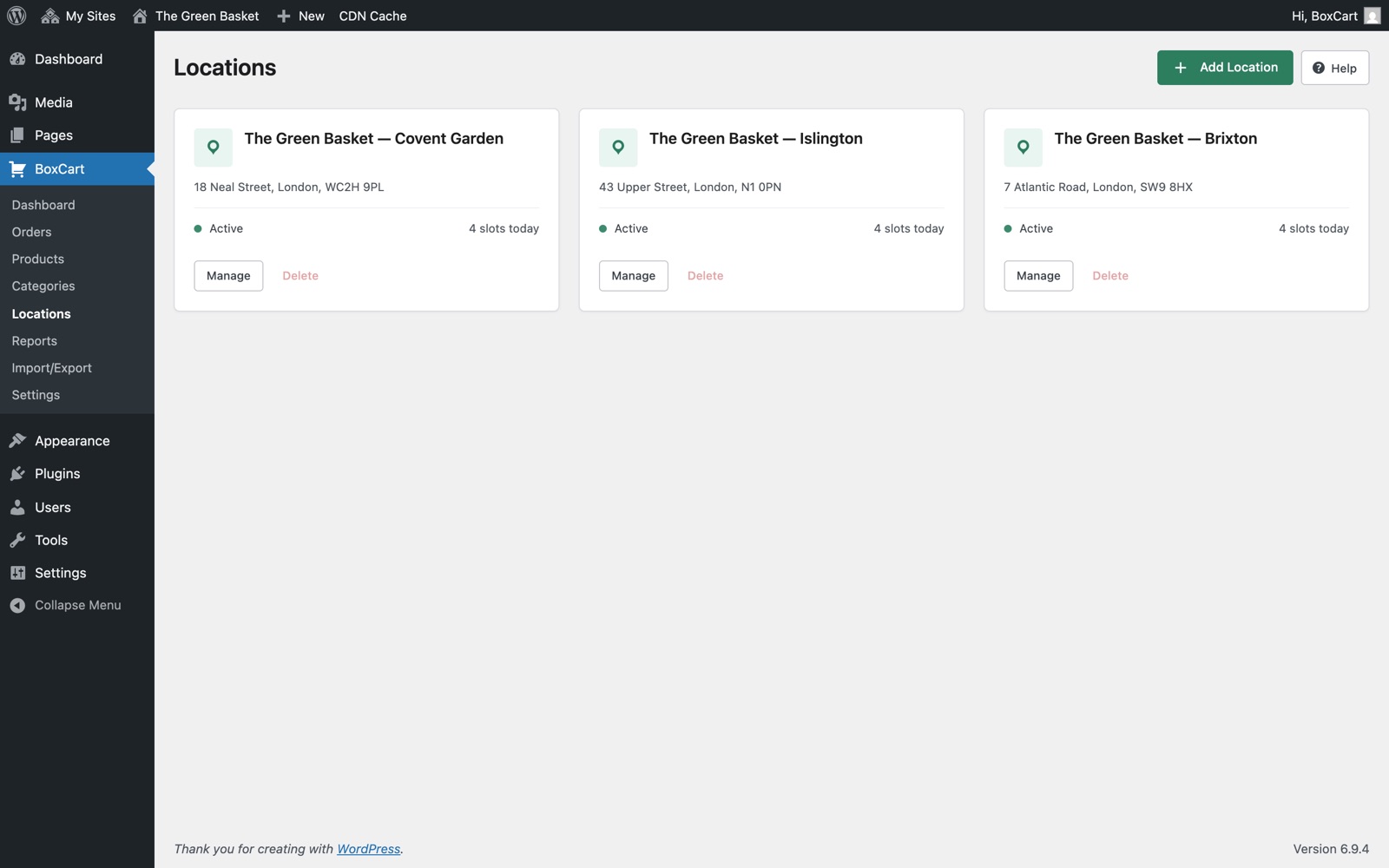
BoxCart supports multiple collection locations. Each location represents a physical pickup point where customers can collect their orders. Navigate to BoxCart → Locations and click Add Location to create a new one.
The admin Locations page uses a card grid layout. Each card displays the location name, address, today's available slots, pending orders count, and action buttons for editing, viewing the schedule, and deleting.
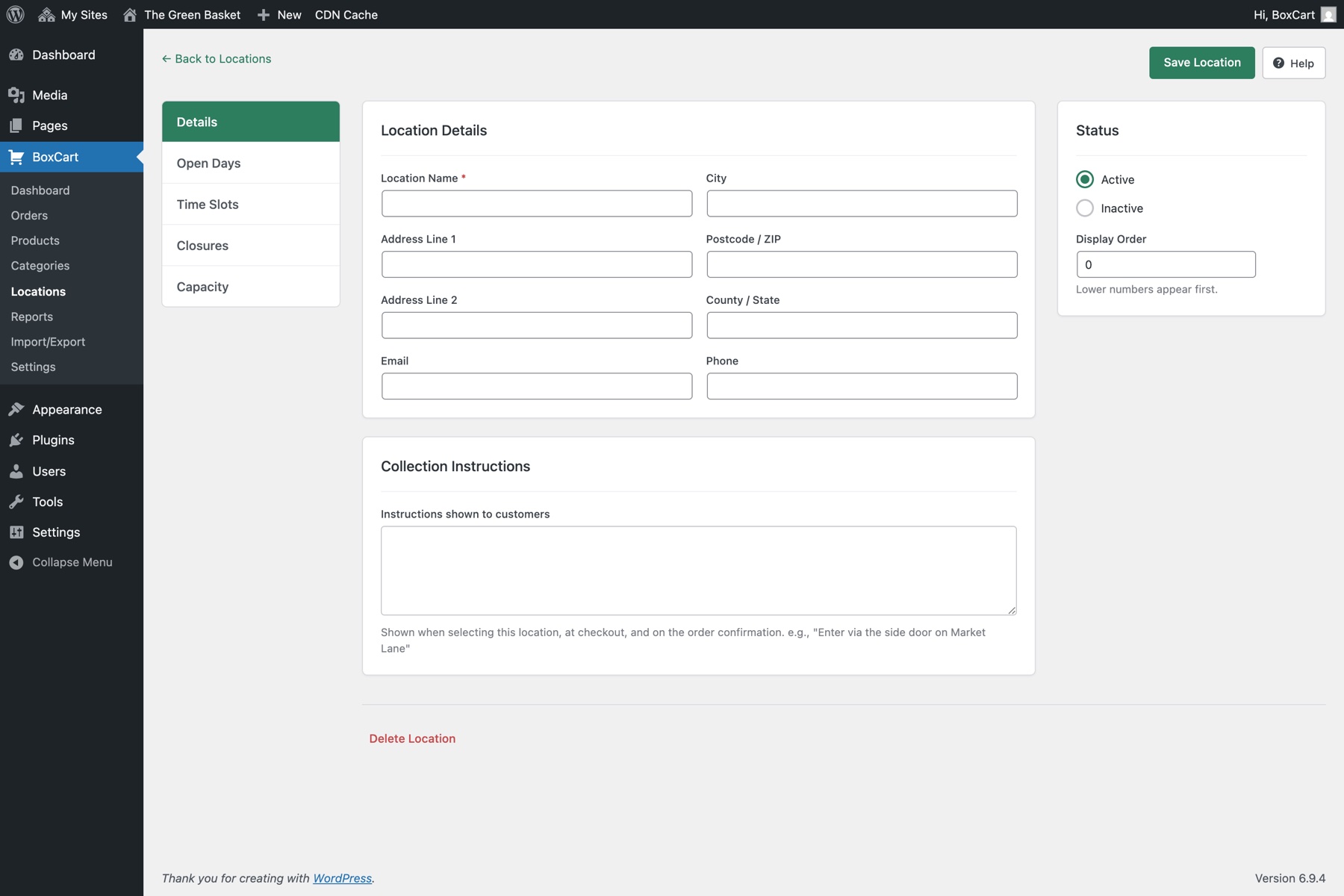
Location Fields
| Field | Description | Required |
|---|---|---|
| Name | Display name for the location (e.g. "Main Shop", "Market Stall") | Yes |
| Address Line 1 | Street address | No |
| Address Line 2 | Additional address line | No |
| City | City or town | No |
| County | County, state, or region | No |
| Postcode | Postal or ZIP code | No |
| Phone | Contact phone number for this location | No |
| Contact email for this location | No | |
| Instructions | Collection instructions shown to customers (e.g. "Enter via the side gate") | No |
| Active | Toggle the location on or off. Inactive locations are hidden from customers | — |
| Sort Order | Numeric value to control the display order of locations (lower numbers appear first) | No |
Use the Active toggle to temporarily hide a location without deleting it. This is useful for seasonal locations or when a site is temporarily unavailable.
Opening Hours
Each location has its own weekly schedule. Navigate to a location's schedule page by clicking Schedule on the location card, then select the Opening Hours tab.
The schedule displays all seven days of the week. For each day you can:
- Toggle the day Open or Closed
- Closed days will not appear in the slot selector for customers
Opening hours are stored per-location with a unique constraint on the combination of location and day of week, ensuring each location has exactly one schedule entry per day.
Opening hours determine which days appear in the date picker. Time slots (below) control the specific collection windows within those open days.
Time Slots
Time slots define the specific collection windows available at each location. Navigate to the location schedule and select the Time Slots tab to manage them.
Each time slot is configured per-location and per-day of the week. The following fields are available:
| Field | Description |
|---|---|
| Day of Week | The day this slot applies to (Monday–Sunday) |
| Start Time | When the collection window opens (e.g. 09:00) |
| End Time | When the collection window closes (e.g. 10:00) |
| Capacity | Maximum number of orders for this slot (default: 10). Once capacity is reached the slot is shown as full |
| Active | Toggle individual slots on or off without deleting them |
You can create multiple slots per day to offer different collection windows. For example, a location open on Saturday might have three slots: 09:00–10:00, 10:00–12:00, and 14:00–16:00.
Set the Capacity to a higher number for busier periods. You can also use Capacity Overrides to adjust capacity for specific dates without changing the default.
Location Closures Pro
Requires BoxCart Pro. Location closures are a Pro feature. See the Free vs Pro comparison.
Closures let you block specific dates for a location. This is useful for bank holidays, maintenance days, staff holidays, or any ad-hoc day when a location will not be accepting collections.
Navigate to the location schedule and select the Closures tab. For each closure you specify:
- Closure Date: the specific date the location will be closed
- Reason (optional): a text note explaining the closure (e.g. "Bank Holiday", "Staff Training Day")
Each location can only have one closure entry per date. Closed dates are automatically excluded from the customer-facing date picker, so no collection slots will be offered on those days.
Closures take priority over opening hours. Even if a day is normally marked as open, adding a closure for that date will prevent any slots from being available.
Capacity Overrides Pro
Requires BoxCart Pro. Per-date capacity overrides are a Pro feature. See the Free vs Pro comparison.
Capacity overrides let you change the order limit for a specific slot on a specific date, without altering the slot's default capacity. This is managed from the Capacity Overrides tab on the location schedule page.
Each override requires:
- Slot: the time slot to override
- Override Date: the specific date the override applies to
- Capacity: the new maximum number of orders for that slot on that date
Common use cases include:
- Increasing capacity for a slot you expect to be busy (e.g. the day before a bank holiday)
- Reducing capacity when you have limited staff
- Setting capacity to zero to effectively close a single slot on a particular date without creating a full closure
Each slot can only have one override per date. The override is uniquely keyed on the combination of slot ID and date.
Collection Settings
Global collection behaviour is configured under BoxCart → Settings → Collection. These settings apply across all locations.
| Setting | Key | Type | Default | Description |
|---|---|---|---|---|
| Lead Time | lead_time_hours |
Number (0–168) | 24 |
Minimum hours notice required before the earliest available collection slot. For example, a value of 24 means customers must book at least 24 hours in advance. |
| Days Available | days_ahead |
Number (1–90) | 14 |
How many days ahead customers can book collection slots. Limits the date picker range. |
| Slot Buffer Minutes | slot_buffer_minutes |
Number (0+) | 0 |
Buffer time in minutes added between the current time and the first available slot. Useful for ensuring shops have preparation time. |
| Slot Reservation Time | slot_reservation_minutes |
Number (0–120) | 30 |
How long a slot is held for a customer before the reservation expires. A slot is only held once the customer has something in their basket. A countdown timer shows the customer how long they have to complete checkout. Set to 0 to disable reservations. |
| Hide Unavailable Dates | hide_unavailable_dates |
Toggle | false |
When enabled, dates the customer cannot book (closed days, days with no slots, fully booked days) are dropped from the date strip entirely instead of being shown greyed out. Useful for shops that only open one or two days a week. Added in 1.3.0. |
| Slot Availability Display | slot_availability_display |
always | low | never |
always |
Whether the remaining-slot count ("3 slots left") appears against each time slot. low shows it only once a slot has 3 or fewer places left. never hides it entirely, which is the right choice if you have not set a real capacity on your slots, since BoxCart falls back to a capacity of 10. Fully booked slots are still labelled as full under every option. Added in 1.3.0. |
Slot-First Shopping
By default, customers can browse products and add items to their basket before selecting a collection slot. Enabling slot-first shopping reverses this flow so that customers must choose a location, date, and time slot before they can begin shopping.
| Setting | Key | Default | Description |
|---|---|---|---|
| Show Slot Selector on Products Page | show_slot_selector_on_products |
true |
Displays the collection slot bar at the top of the products page, so customers can choose their collection time while they shop. Turning this off also disables slot-first shopping. |
| Require Slot Selection Before Shopping | require_slot_before_shopping |
false |
When enabled, customers must select a collection slot before they can browse and add products. The slot selector modal is presented immediately on the products page. Only applies when the slot selector is shown. |
When slot-first shopping is active:
- The customer visits the products page
- The slot selector modal opens automatically, prompting them to choose a location, date, and time slot
- Once a slot is selected, the products page loads and the customer can browse and add items to their basket
- The selected slot is stored on the basket and carried through to checkout
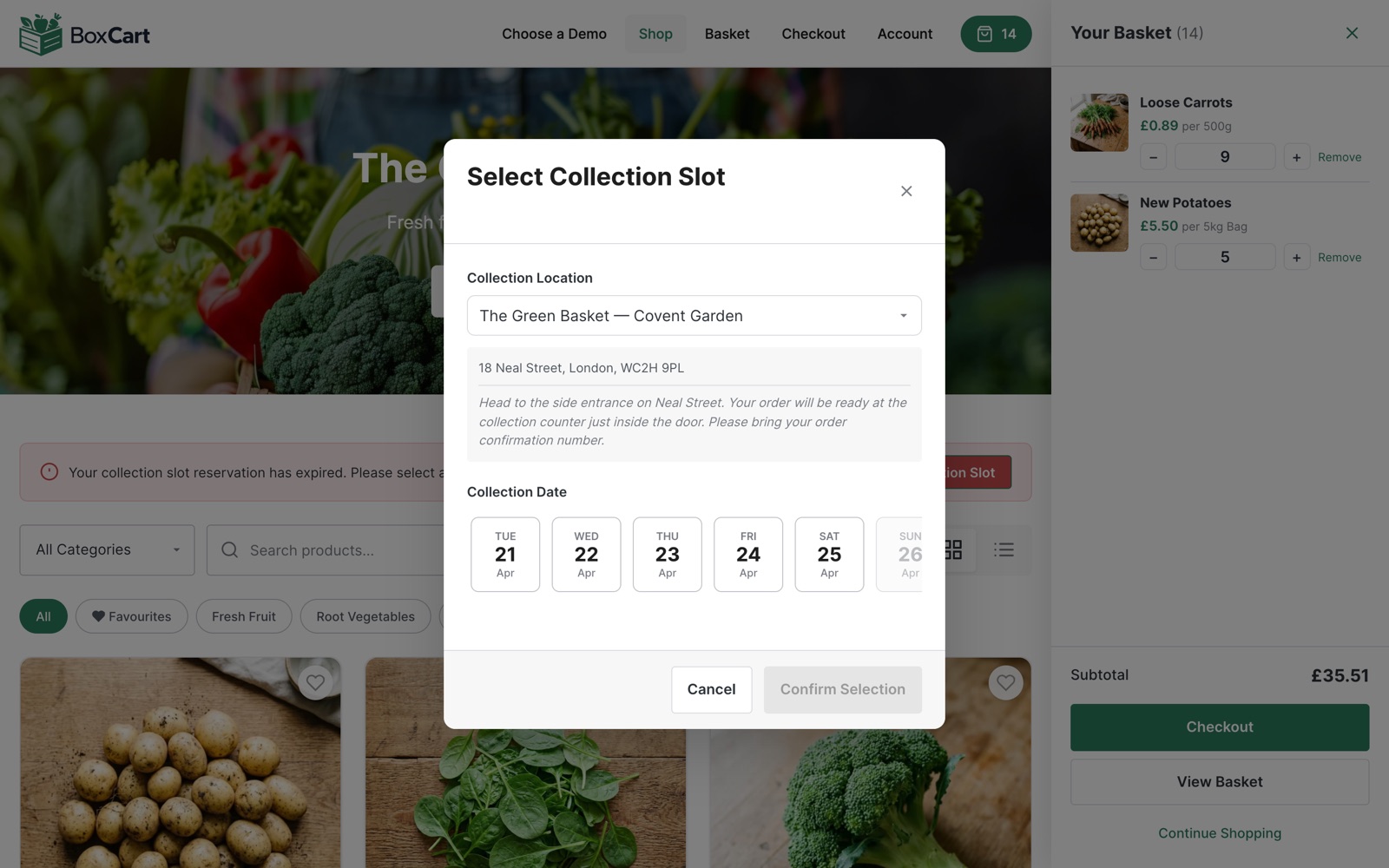
Slot-first shopping is ideal for businesses that prepare orders in advance and need to know the collection time before the customer starts shopping. If you prefer a more flexible experience, leave this disabled and customers can select their slot at checkout instead.
Slot Bar
The collection slot bar is displayed at the top of the products page and shows the customer's currently selected collection slot. It provides a quick visual summary of the chosen location, date, and time, and allows the customer to open the slot selector modal to change their selection.
The slot bar has three visual states:
- Empty: no slot selected yet; prompts the customer to choose a collection time
- Valid: a slot is selected and confirmed
- Warning: the selected slot has an issue (e.g. it has expired or capacity has been reached)