 BoxCart
Search
How the search box on your shop page finds products, how to help it find the ones customers mean, and how Search Insights shows you what people searched for and which searches found nothing.
How customers search
Since 1.8.0, the search box above your products looks in four places:
- the product's name;
- the words you add under Also found by;
- the product's description;
- the names of the product's categories.
Results come in that order, best matches first. A product only shows when every word of the search is in it somewhere, so "red onions" finds Red Onions but not every red thing in the shop. Plurals find singulars and the other way round: "potatoes" and "potato" find the same products, and "berries" finds Blueberries.
Search works the same in the card view, the table view (BoxCart Pro) and on phones. It's part of the free plugin. You can turn the search box off under BoxCart → Settings → Styling → Product Display (see Product Display).
Also found by
Customers don't always use your names for things. Someone looking for your sourdough might type "bread" or "loaf". Under the description on the product screen, the Also found by box takes words or phrases customers might search for, one per line (commas work too). They count as much as the product's name, and customers never see them.
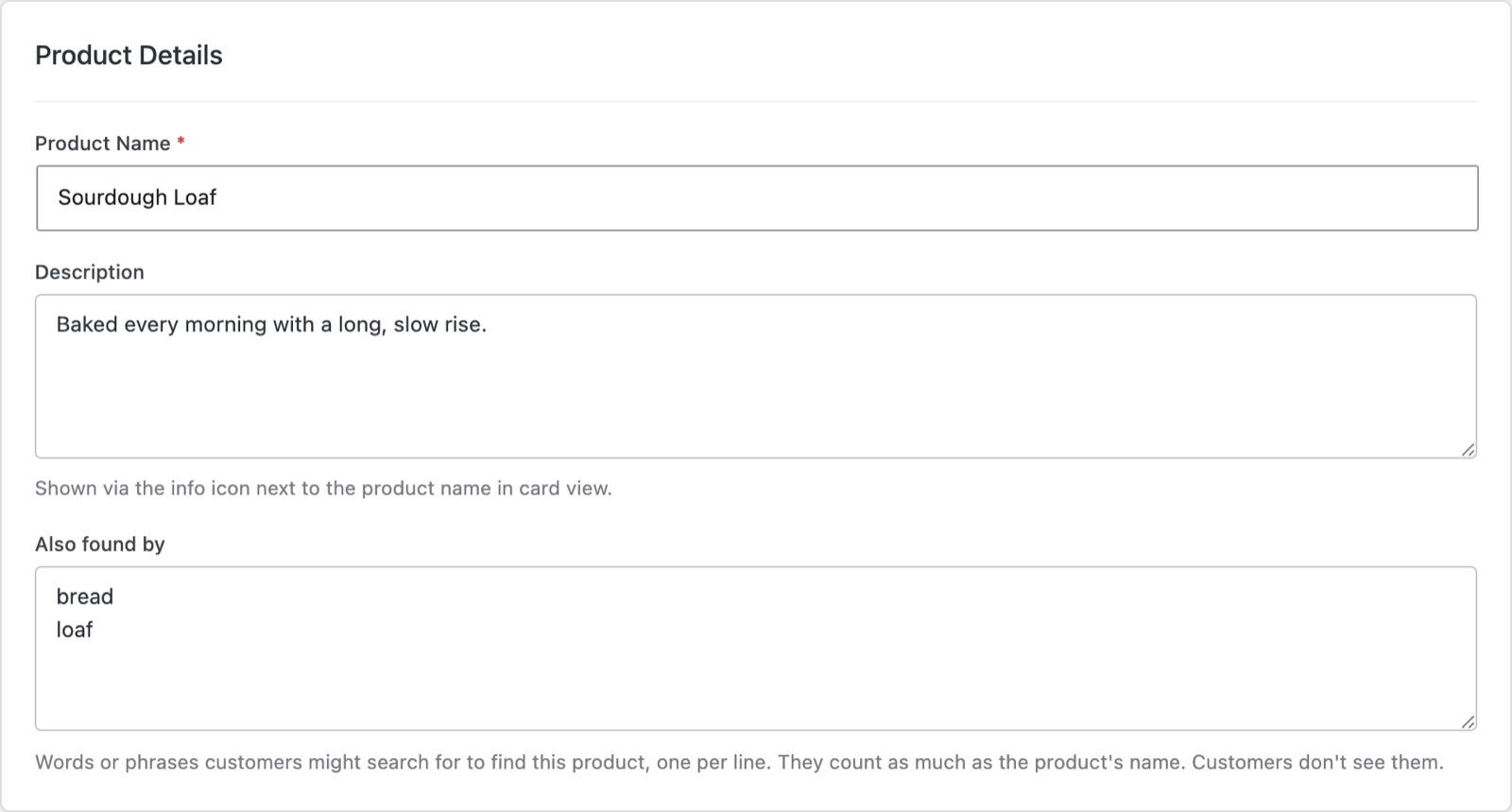
A product can hold up to 500 characters of words. With BoxCart Pro you can also fill them in from a spreadsheet: the product CSV has a Search Words column (see Import / Export).
You don't have to guess which words to add. Turn on Search Insights and add the ones customers actually use, straight from the list of searches that found nothing.
Typos and near misses
When a search finds nothing, BoxCart looks for the closest word your shop uses, in product names, Also found by words and category names.
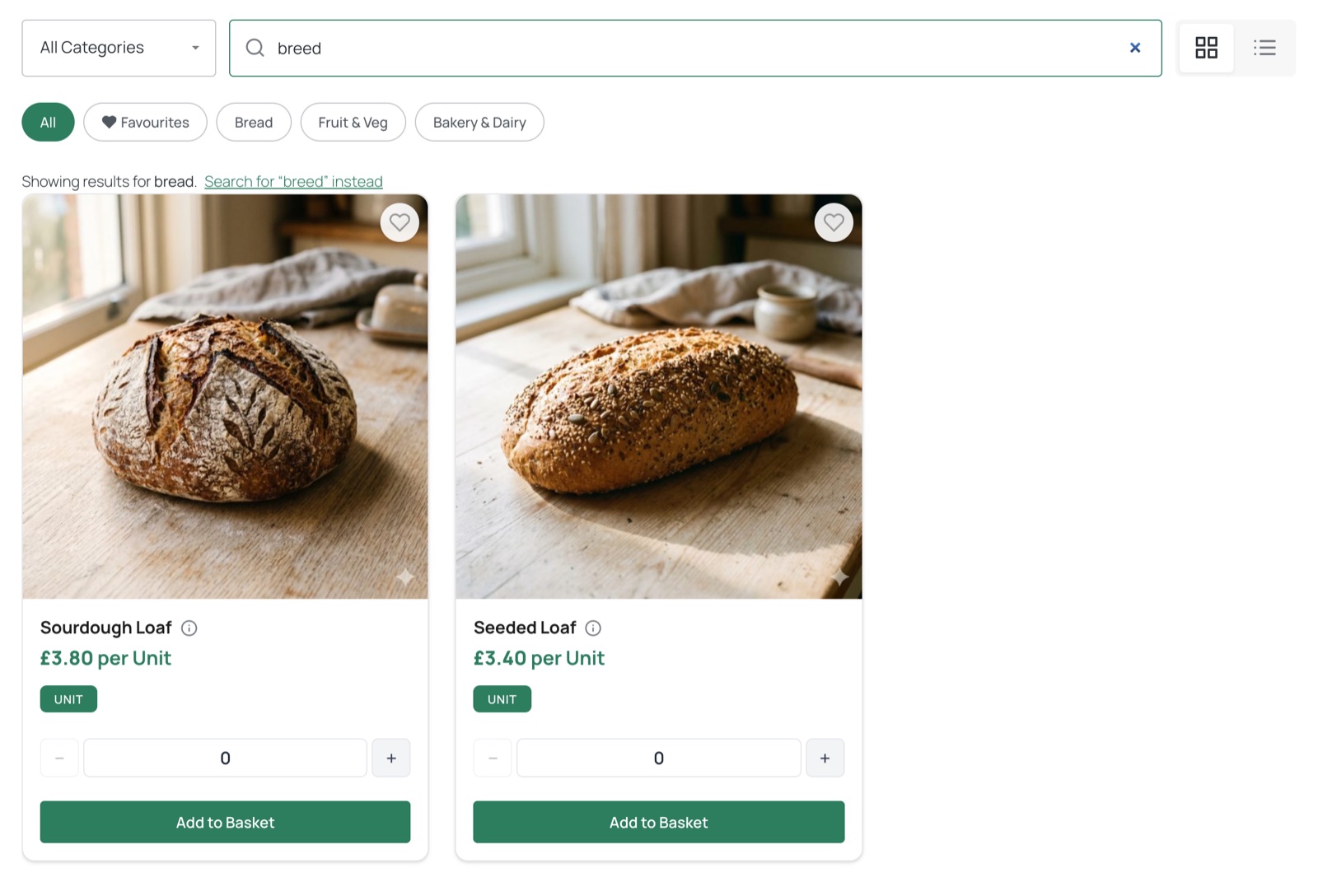
- When it's sure (one letter out in a word of four letters or more, or two letters the wrong way round), it shows those results straight away and says so: "Showing results for bread." A Search for "breed" instead link searches exactly what was typed.
- When it's only a guess (further out, or a word that's only half typed), nothing changes by itself. In a shop that sells Chinese leaf, a search for "cheese" says "Nothing found for "cheese". Did you mean chinese?", and clicking the word searches for it.
Category matches and similar names
A search can match a category name rather than a product. Say you have a category called "Bread & Dairy" and a customer searches "bread":
- If some products match by name, Also found by words or description, they come first. Products found only through their category follow, under an Also in Bread & Dairy divider, so the milk doesn't sit above the sourdough.
- If only the category matches, the shop says so plainly: "No products called "bread". Showing Bread & Dairy." That's a sign to add "bread" to the products it means.
Whole words come first. A word found only inside a longer name ("butter" in Butternut Squash) is listed last, under Similar names, and Search Insights counts that search as finding nothing, so it shows up for you to fix.
Search Insights
Search Insights shows you what customers type into the search box, and which searches find nothing. It's free, and it's off until you turn it on.
-
Turn it on
Go to BoxCart → Settings → General → Products and tick Search Insights. Until you do, the BoxCart Searches dashboard widget and the Searches screen show a Turn on Search Insights button instead.
-
Let customers search
A search counts once the customer has finished typing: about two seconds after the results show, or when they press Enter, click away or leave the page. Half-typed words never count, and each search counts once per page view.
-
See what they searched for
Open BoxCart → Searches, or look at the BoxCart Searches widget on your WordPress dashboard.
Searches by you and your shop staff while signed in don't count, so trying the search yourself won't skew the figures. Neither do searches from bots and crawlers.
The Searches screen
BoxCart → Searches shows the last 4 Weeks, 12 Weeks or 26 Weeks. Administrators and shop staff can open it.
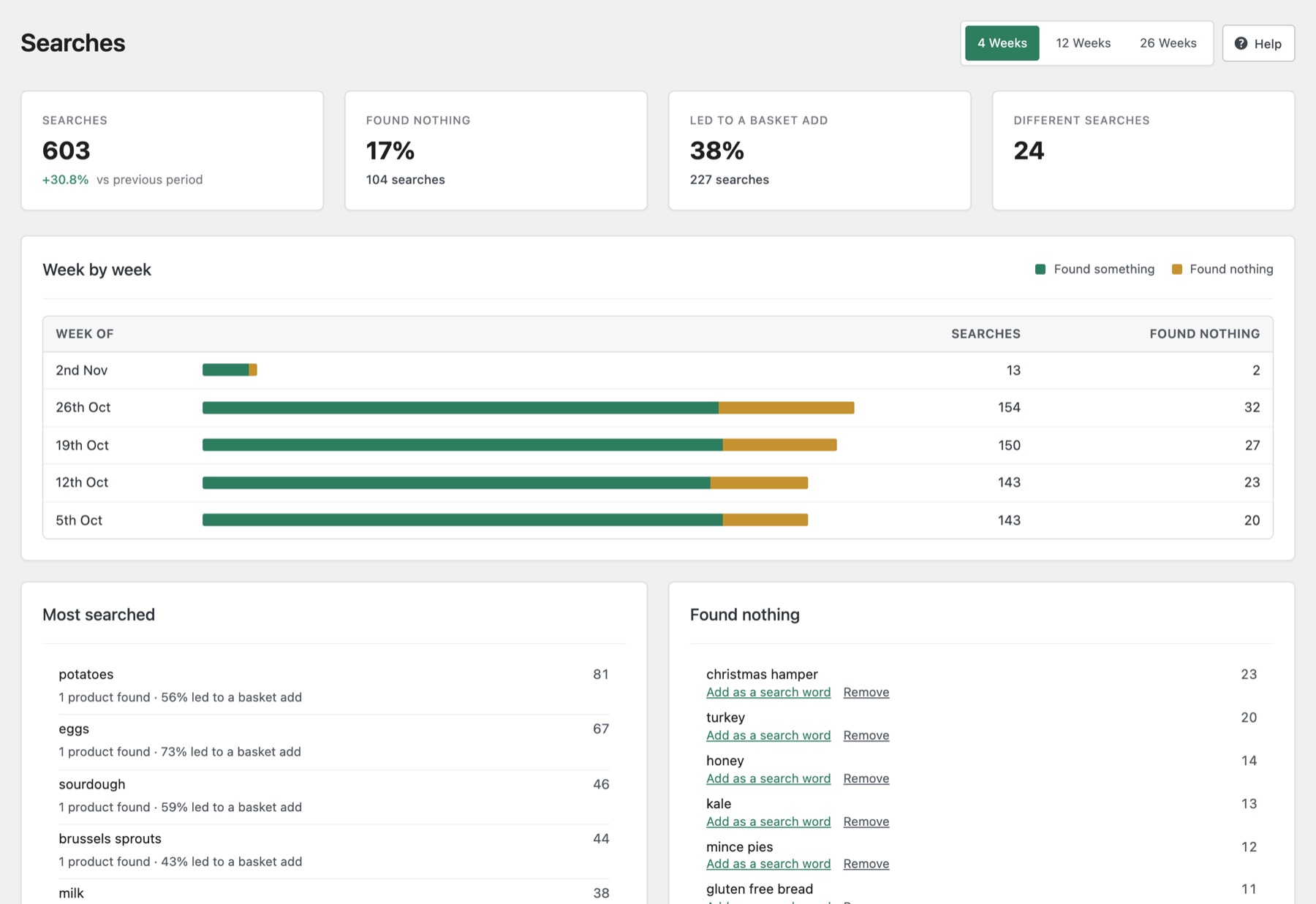
- Figures: how many searches there were (against the period before), the share that found nothing, and how many different searches there were.
- Most searched: each search with how often it was made and how many products it found. A search that only matched a category is marked Only matched a category, with Add as a search word beside it.
- Found nothing: searches that found no products. Some are things you sell under another name; the rest show what customers would buy if you had it.
Searches are grouped as typed, lower case, with plurals folded together, so "Potatoes" and "potato" count as one search.
Add as a search word
When a search found nothing but you do sell it, add the search to the right products in a couple of clicks:
-
Choose Add as a search word
Next to the search, on the Searches screen or in the dashboard widget. A product picker opens under it.
-
Tick the products
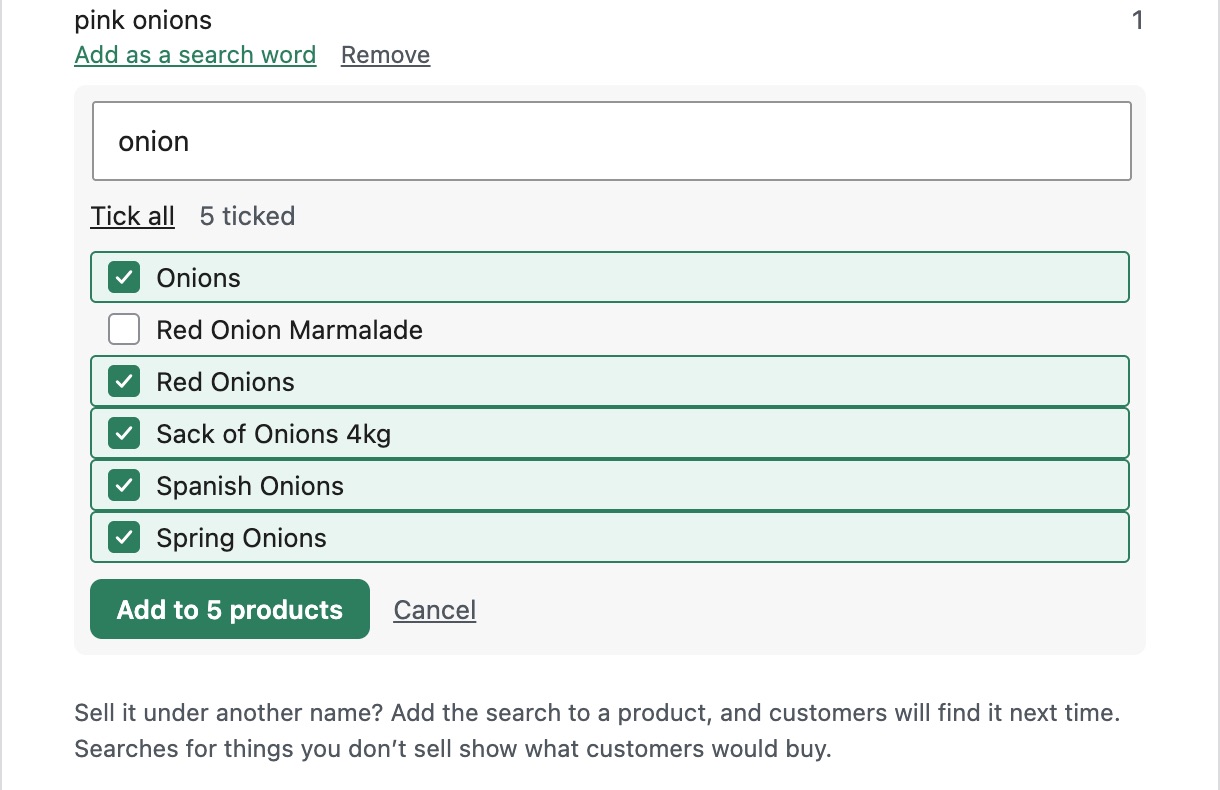
Start typing a product name and tick the products the search should find. Tick all ticks every product the list shows (up to 50), and you can untick any you don't want. Ticks stay while you search again, so for "pickling onions" you could tick every onion, untick the onion marmalade, then search "shallot" and tick those too.
-
Add
The button says how many products you've ticked, for example Add to 5 products. The search goes into each product's Also found by words, and the message lists the products. A product that has no room for more words is skipped and named.
From then on the search finds those products, and it leaves the widget's Found nothing list (it comes back only if a later search for it finds nothing again).
Removing a typing mistake
Searches that found nothing also have Remove, for typing mistakes you don't want in your lists. BoxCart asks first, then the search comes off your lists and figures for good. Only the days it found nothing are removed: if the same search found something on other days, those stay, so a real search can't be wiped by mistake.
The BoxCart Searches dashboard widget
The BoxCart Searches widget on your WordPress dashboard shows the last 30 days at a glance: how many searches there were and how many found nothing, then one list with a Most searched | Found nothing switch. Searches that found nothing have Add as a search word and Remove, as on the Searches screen. Open Searches takes you to the full screen.
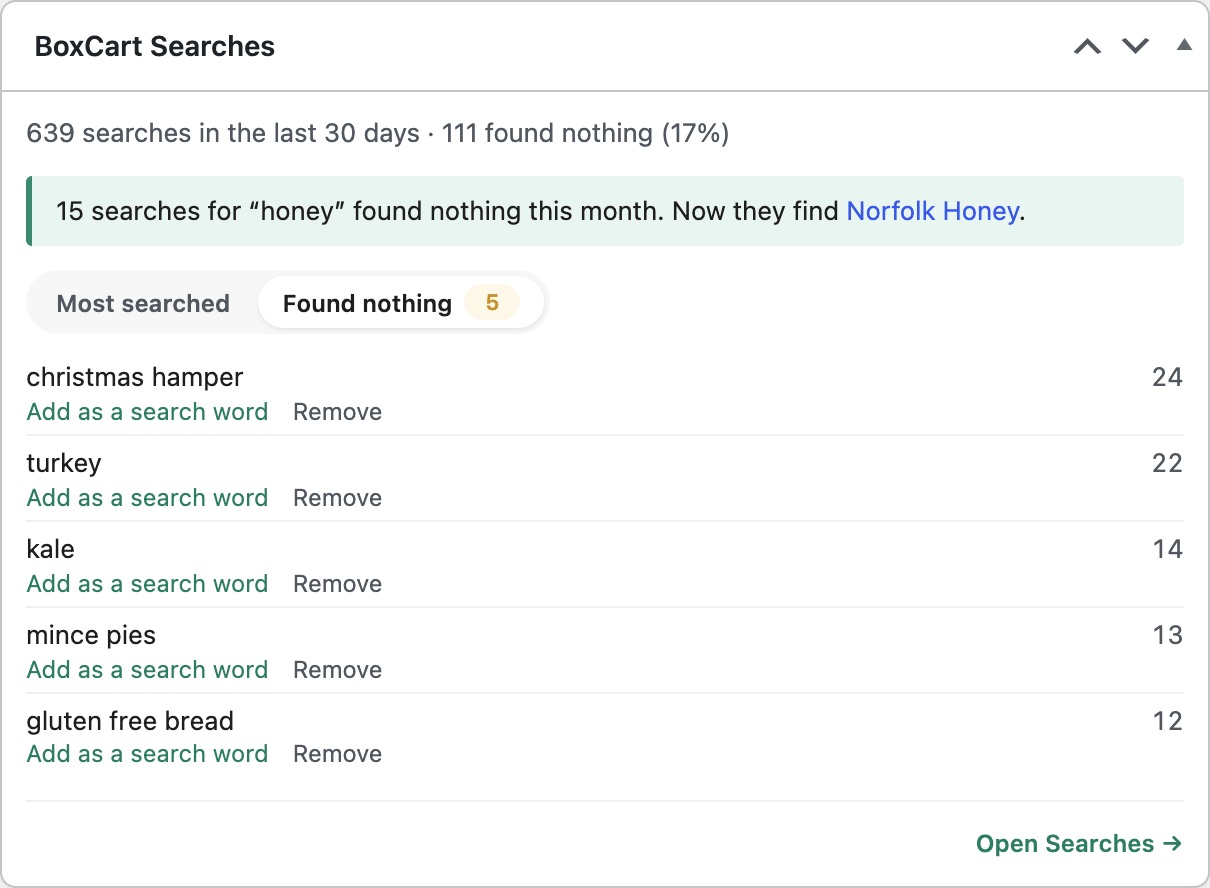
Shop staff see the widget once Search Insights is on. Only administrators can turn it on.
More on the Searches screen Pro
With an active BoxCart Pro licence, the Searches screen adds:
- Week by week: a bar for each week, split into searches that found something and searches that found nothing.
- Rising: searches made noticeably more often than in the period before, such as sprouts in November. It shows once there are searches from the period before to compare with.
- Led to a basket add: the share of searches where the customer added a product to their basket while the results were showing, as a figure at the top and next to each search in Most searched.
- Now in stock: when you publish a product, or put one back in stock while out-of-stock products are hidden, that a search which found nothing this month now finds, BoxCart tells you, for example "15 searches for "honey" found nothing this month. Now they find Norfolk Honey." The note shows for a week here and in the BoxCart Searches widget, and goes in your Shop Report.
- Download as a spreadsheet (CSV): every search in the period you're looking at, with how often it was made, how often it found nothing, the products it found last time, basket adds and when it was last searched. Administrators can download it.
Searches also feature in the Pro Shop Report email. If you bookmarked Reports → Searches while trying a 1.8.0 test version, that link now opens BoxCart → Searches.
Privacy: what's kept
Search Insights keeps only the search words (lower case), the day, how many times they were searched and how many products they found, plus basket adds on Pro. Nothing links a search to a person, and it sets no cookies. Searches are deleted after 180 days.
These are never kept:
- searches that look like an email address, a phone number, a UK postcode or a web link (someone typing into the wrong box);
- searches shorter than two characters, or with no letters in them;
- searches by you and your shop staff while signed in, and by bots.
To stop one visitor flooding the lists, each visitor can add up to 30 searches in ten minutes. For that count BoxCart keeps a scrambled (hashed) form of the visitor's IP address for ten minutes, separately from the searches.
Searches are stored in the {prefix}boxcart_search_log table (see Database Schema). The hooks and AJAX actions are listed under Hooks & Filters and AJAX Endpoints.